
1. Introduction
2. Schematic
Programming RGB Ring Light - HS-F12PA SchematicClick to view
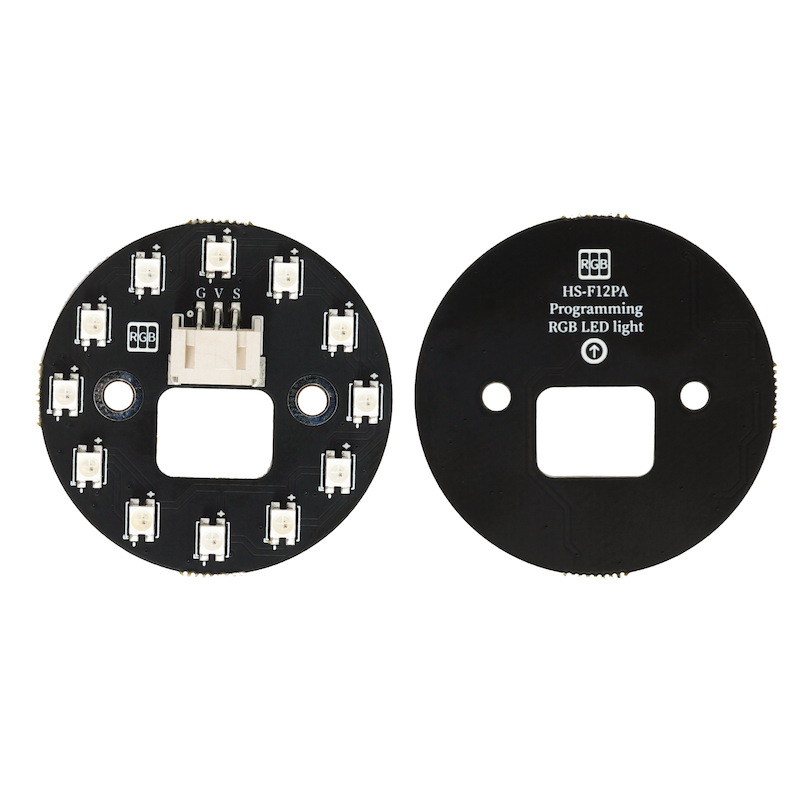
Module Parameters
Pin Name | description |
|---|---|
G | GND (Power Input) |
V | V (Power Positive) |
S | For signal input to control the color and串联number of RGB beads |
Power Supply Voltage: 3.3V / 5V
Connection method: 3P PH2.0 terminal or 3P PH2.0 terminal to DuPont wire
Installation Method: Double Screw Fixed
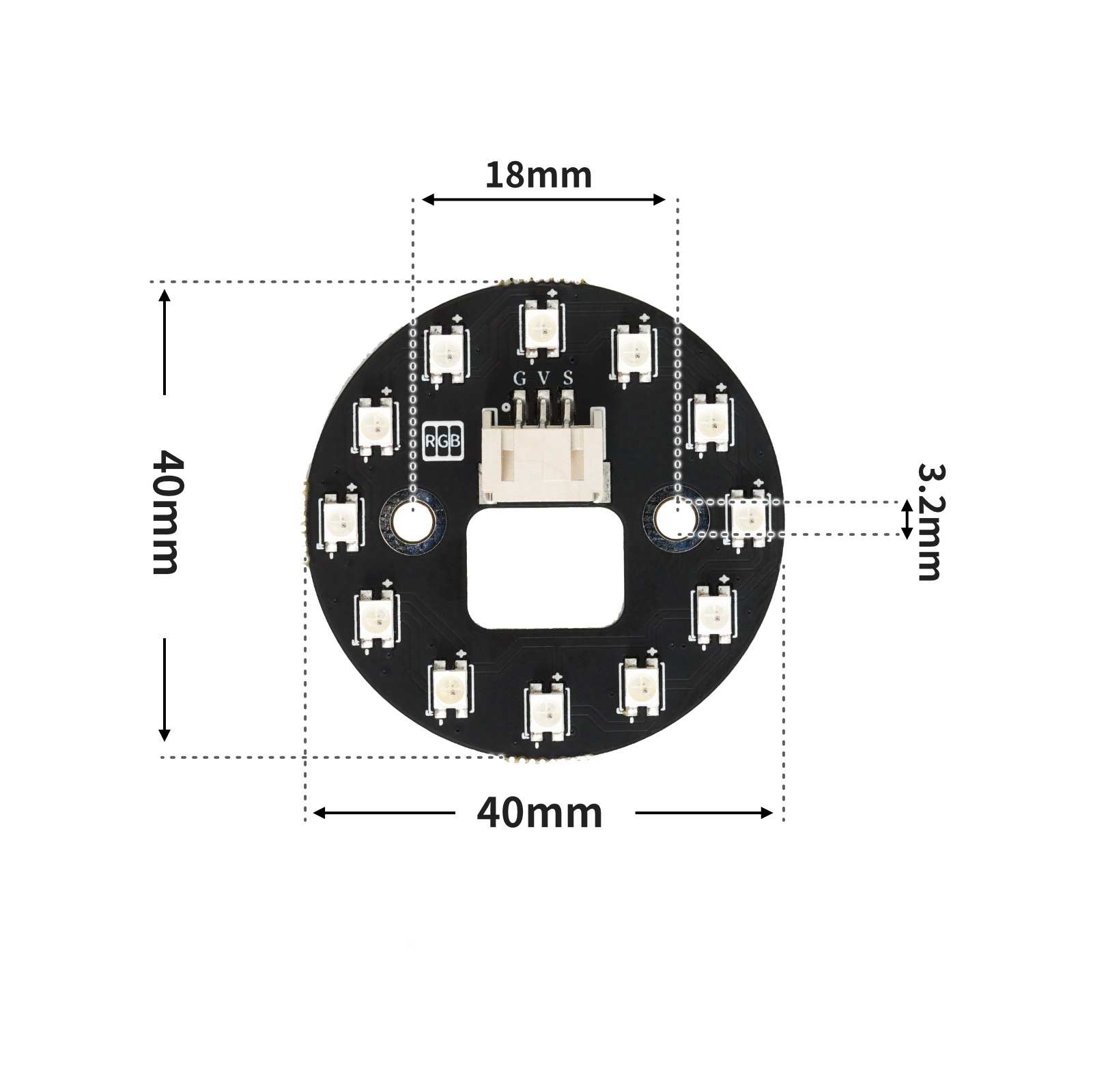
4, Circuit Board Size
5 of Arduino IDE example program
Attention: If prompted with an error message about the library file during program upload, please import the library file first!
Arduino IDE Library Download and Import Tutorial:Click to view
Example program (UNO development board):
#include <Adafruit_NeoPixel.h>

Adafruit_NeoPixel rgb_display_10 = Adafruit_NeoPixel(12,10,NEO_GRB + NEO_KHZ800);

void setup(){
  rgb_display_10.begin();
}

void loop(){
  for (int i = 1; i <= 12; i = i + (1)) {
    rgb_display_10.setPixelColor((i)-1, ((((i * 21) & 0xffffff) << 16) | ((0 & 0xffffff) << 8) | 0));
    rgb_display_10.show();
    delay(200);
    rgb_display_10.setPixelColor((i)-1, (0xffff00));
    rgb_display_10.show();
    delay(200);
  }

}
6, ESP32 Python Example (for Mixly IDE/Misashi)
Choose the development board Python ESP32 [ESP32 Generic(4MB)] and upload in code mode
Attention: If prompted with an error message about the library file during program upload, please import the library file first!
Download and import tutorial for Mixly IDE ESP32 library:Click to view
Example program (ESP32-Python):
import machine
import neopixel
import time


rgb = neopixel.NeoPixel(machine.Pin(2), 12)
while True:
    for i in range(0, 12, 1):
        rgb[i] = (100, 0, 0)
        rgb.write()
        time.sleep(1)
    for i in range(0, 12, 1):
        rgb[i] = (0, 0, 0)
        rgb.write()
        time.sleep(1)
7, Mixly example program (graphical language)
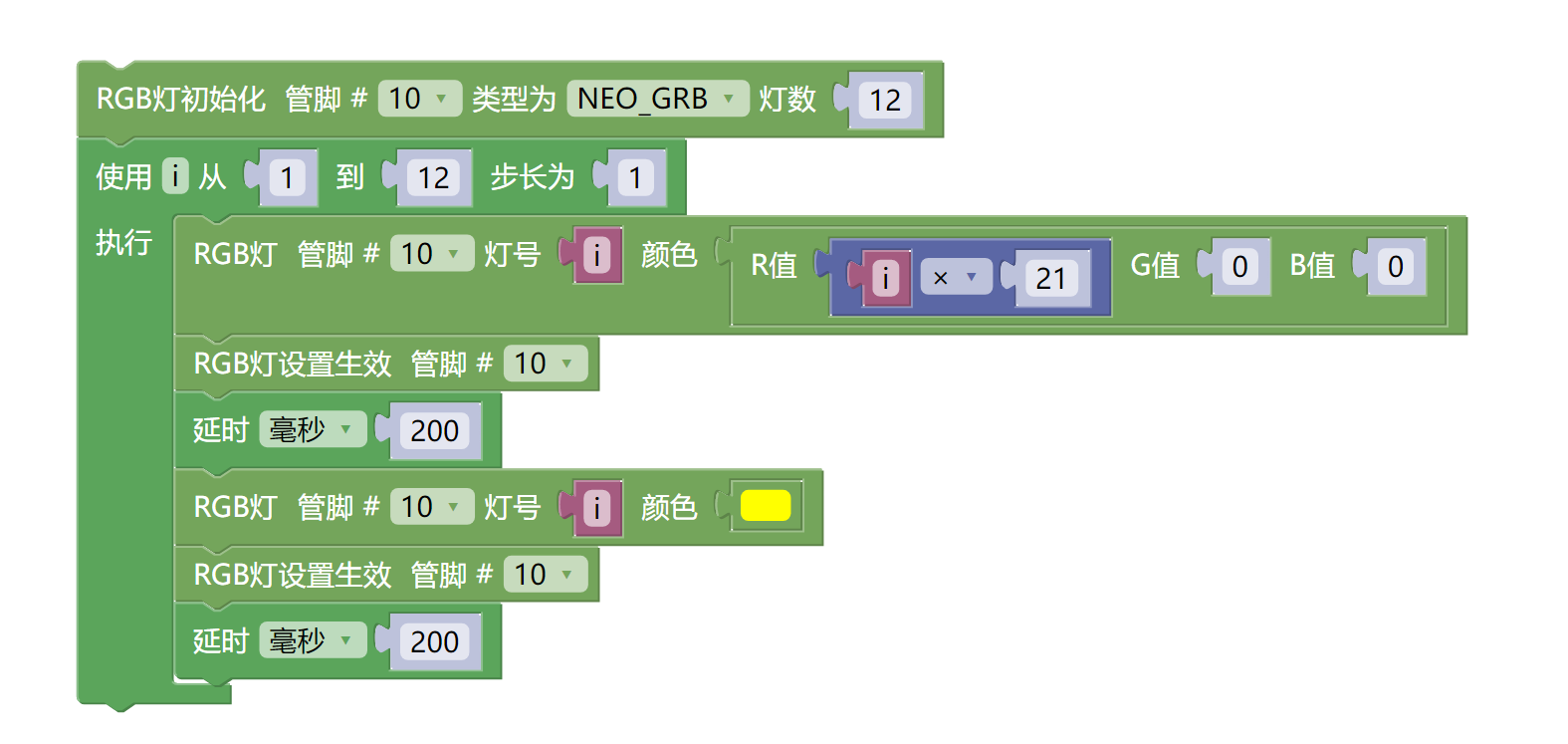
Example program (UNO development board):Click to download
Attention: If prompted with an error message about the library file during program upload, please import the library file first!
Download and import tutorial of Mixly IDE Arduino library:Click to view
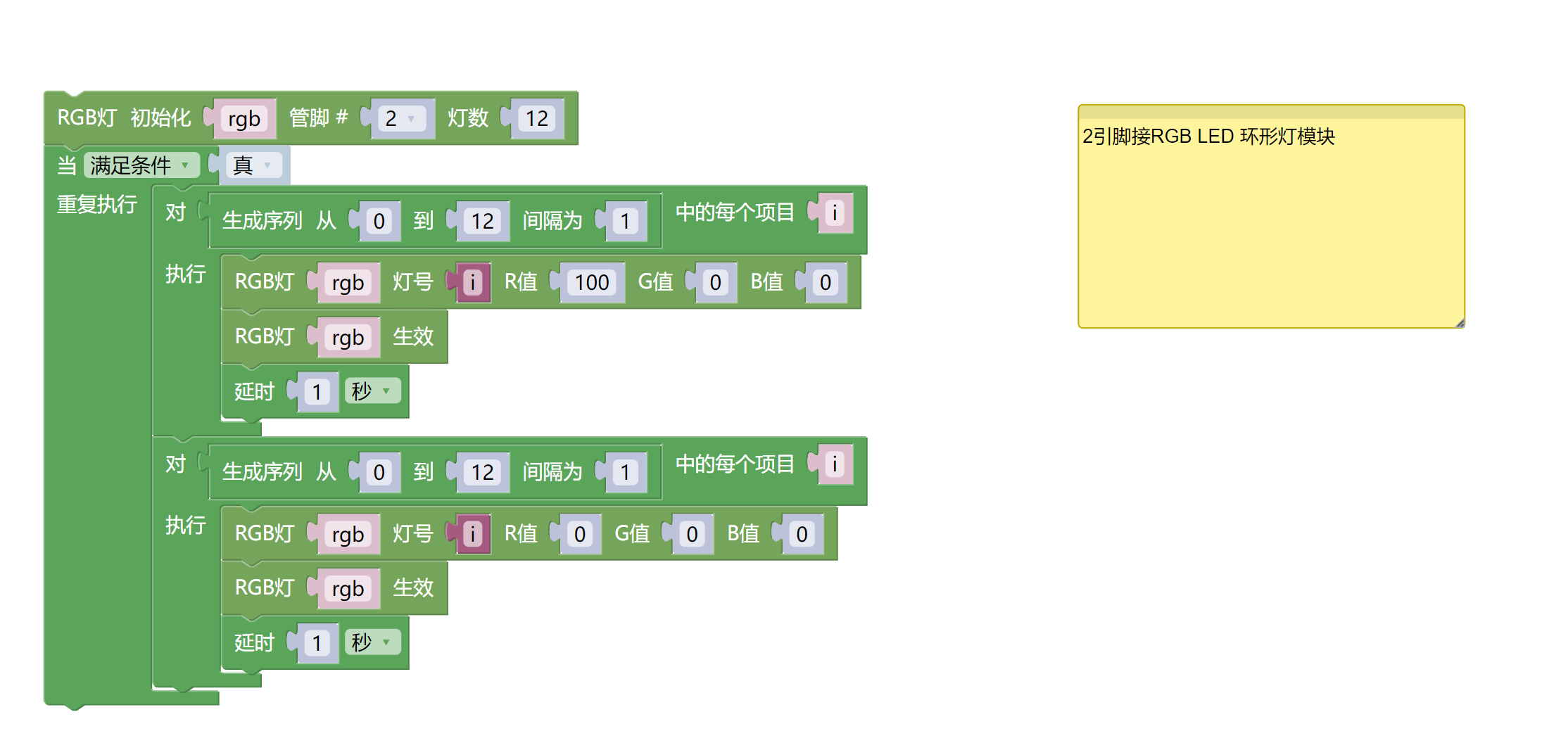
Example Program (ESP32 Development Board):Click to download
Attention: If prompted with an error message about the library file during program upload, please import the library file first!
Download and import tutorial for Mixly IDE ESP32 library:Click to view
8. Setting up the Test Environment
Arduino UNO Test Environment Setup
Prepare Components:
HELLO STEM UNO R3 PRO DEVELOPMENT BOARD *1
USB TYPE-C DATA CABLE *1
RGB LED Ring Light Module (HS-F12PA) *1
3P PH2.0 Terminal or 3P PH2.0 Terminal to Dupont Wire
Circuit wiring diagram:
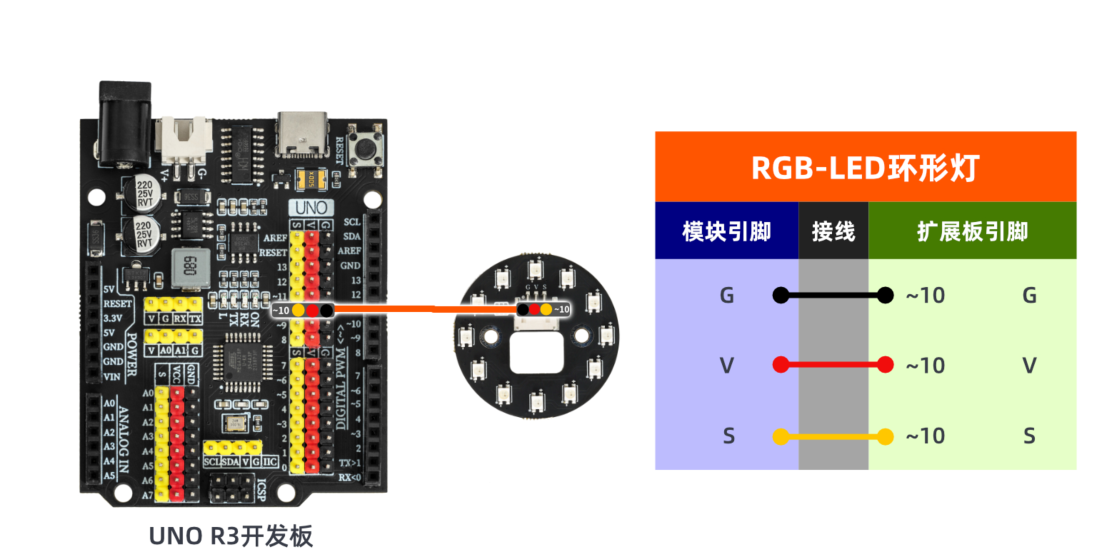
ESP32 Test Environment Setup
Prepare Components:Pending update...
Circuit wiring diagram:Pending update...
9, Video tutorial
Video tutorial:Click to view
10, Test conclusion
Arduino UNO test results:
After the device is connected to the wire, upload the above program to the Arduino UNO development board, and you will see the lights on the ring light up one by one in yellow. After each light is lit, it will pass the red light, creating a running light effect.
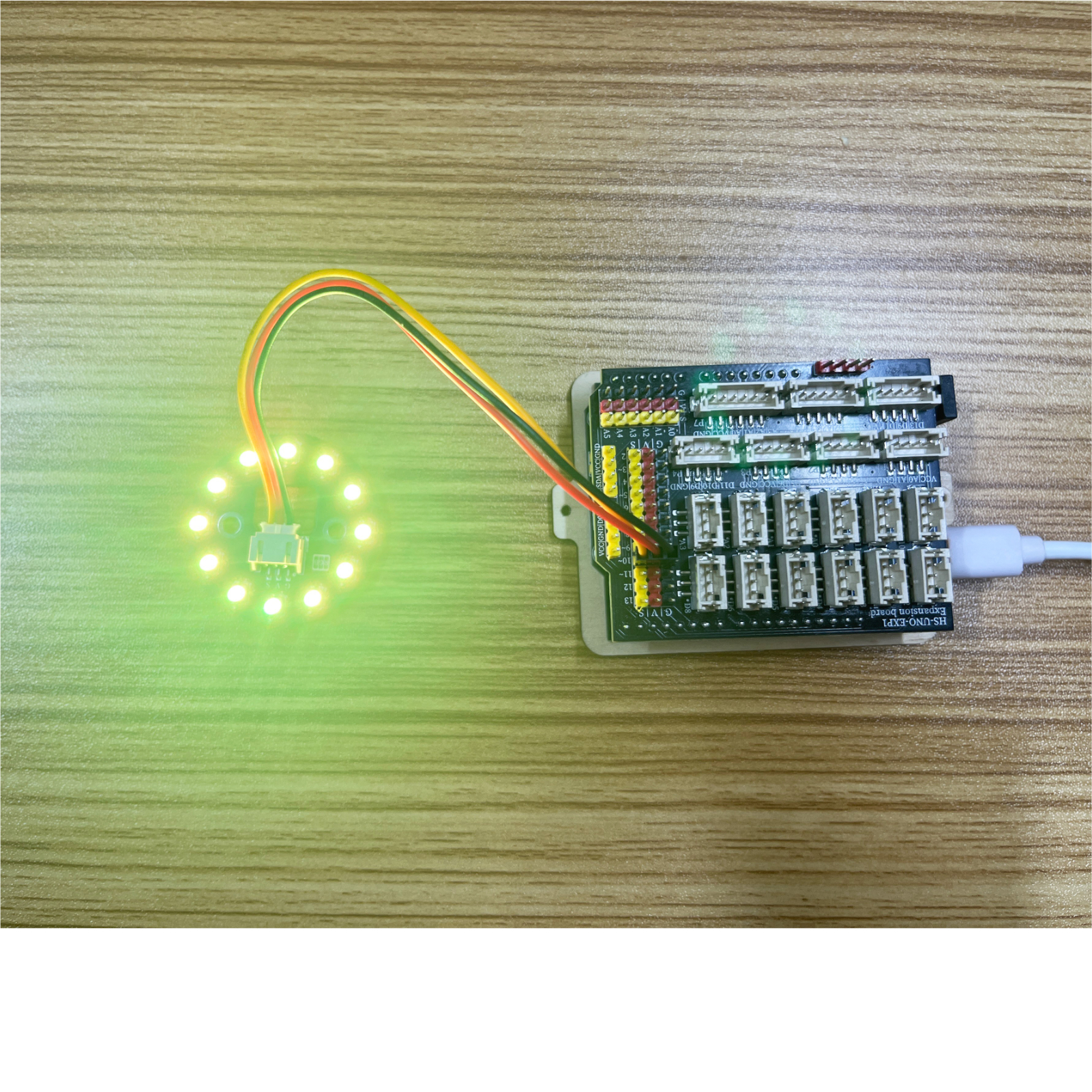
ESP32 Test Results:
Pending update...