
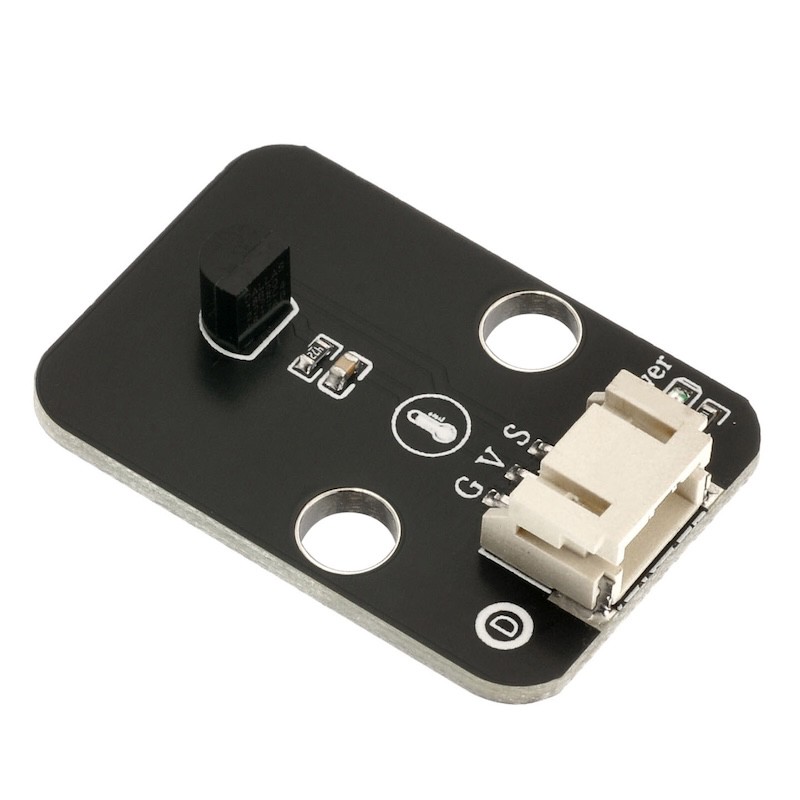
1. Introduction
2. Schematic
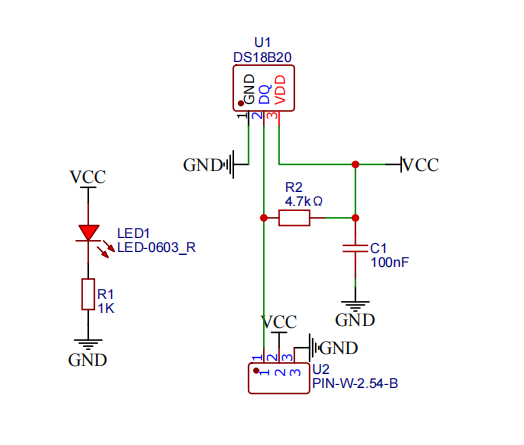
Module Parameters
Pin Name | description |
|---|---|
G | GND (Negative Power Input) |
V | VCC (Positive Power Input) |
S | Digital Signal Pin |
Power Supply Voltage: 3.3V / 5V
Connection method: PH2.0 terminal wire
Installation Method: Double Screw Fixed
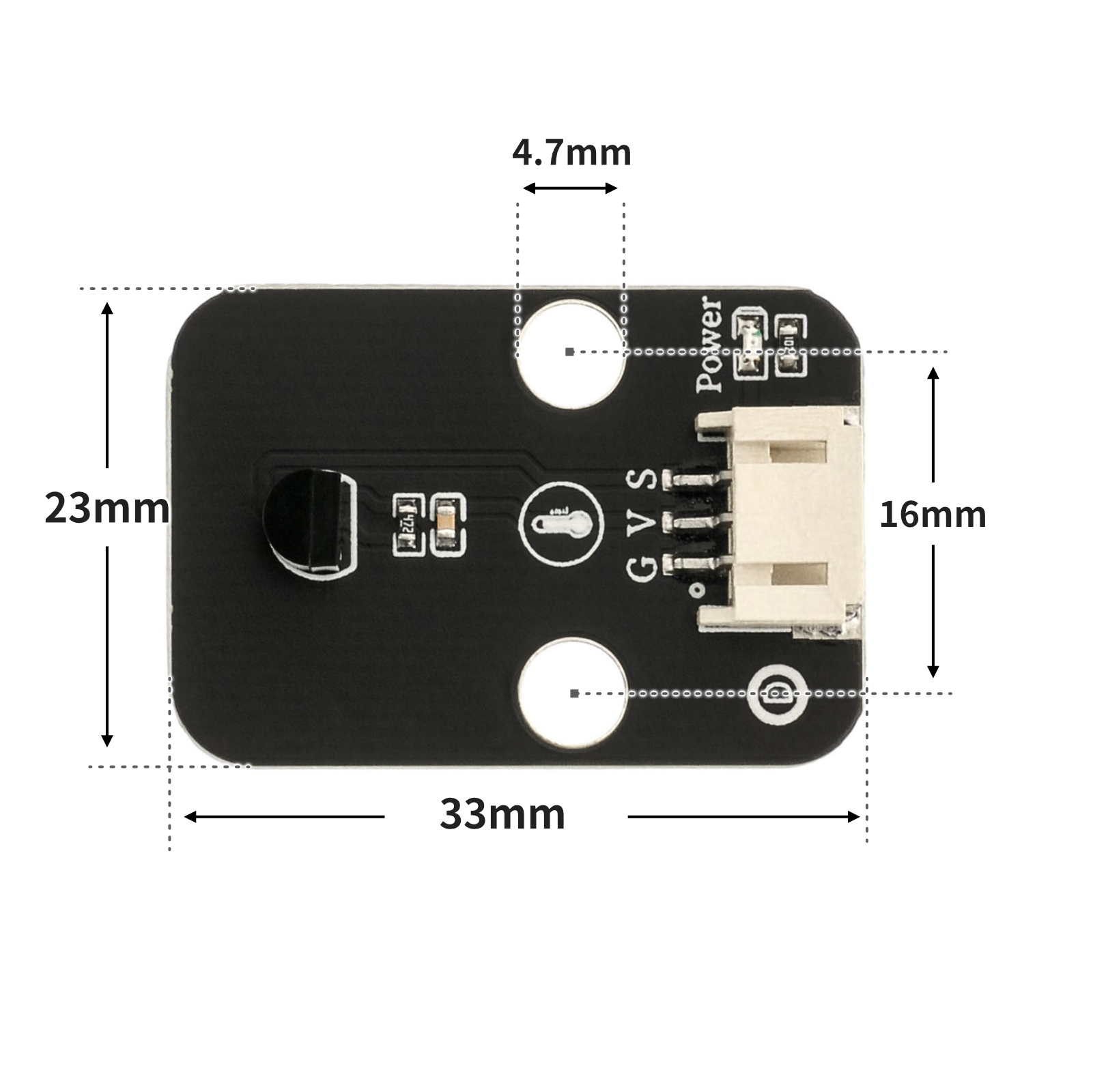
4, Circuit Board Size
5 of Arduino IDE example program
Arduino UNO Example (for Mixly IDE, Arduino IDE):Click to download
/***********************************************************
 文件名:06_DS18B20Temperature sensor.ino
  描述:获取温度值,串口打印数据。
  作者:陈志强
  日期:2022.11.2
***********************************************************/
#include <OneWire.h>
#include <DallasTemperature.h>

OneWire oneWire_9(9);//18B20数字温度传感器接 Arduino 上的数字引脚9口
DallasTemperature sensors_9(&oneWire_9);//将 oneWire 引用传递给DallasTemperature库
DeviceAddress insideThermometer;

float ds18b20_9_getTemp(int w) {
  sensors_9.requestTemperatures();//发送命令以获取温度
  if(w==0) {
    return sensors_9.getTempC(insideThermometer);
  }
  else {
    return sensors_9.getTempF(insideThermometer);
  }
}

void setup(){
  Serial.begin(9600);
  sensors_9.getAddress(insideThermometer, 0);
  sensors_9.setResolution(insideThermometer, 9);
}

void loop(){

  Serial.println(String("温度:") + String(ds18b20_9_getTemp(0)) + String("℃"));//以摄氏度为单位打印温度
  Serial.println(String("温度:") + String(ds18b20_9_getTemp(1)) + String("℉"));//以华氏度为单位打印温度
  Serial.println("");
  delay(1000);

}
Example Program (ESP32 Development Board — Based on Python language, cannot be uploaded using Arduino IDE):
from machine import Pin
import time
class OneWire:
    def __init__(self, pin):
        self.pin = pin
        self.pin.init(Pin.OPEN_DRAIN, Pin.PULL_UP)
        self.pin.value(1)
    def reset(self):
        self.pin.value(0)
        time.sleep_us(480)
        self.pin.value(1)
        time.sleep_us(60)
        present = not self.pin.value()
        time.sleep_us(420)
        return present
    def writebit(self, value):
        self.pin.value(0)
        if value:
            time.sleep_us(10)
            self.pin.value(1)
            time.sleep_us(55)
        else:
            time.sleep_us(65)
            self.pin.value(1)
            time.sleep_us(5)
    def readbit(self):
        self.pin.value(0)
        time.sleep_us(2)
        self.pin.value(1)
        time.sleep_us(15)
        value = self.pin.value()
        time.sleep_us(45)
        return value
    def writebyte(self, value):
        for i in range(8):
            self.writebit((value >> i) & 1)
    def readbyte(self):
        value = 0
        for i in range(8):
            value |= self.readbit() << i
        return value
    def readinto(self, buf):
        for i in range(len(buf)):
            buf[i] = self.readbyte()
class DS18B20:
    def __init__(self, onewire):
        self.ow = onewire
        self.buf = bytearray(9)
    def convert_temp(self):
        self.ow.reset()
        self.ow.writebyte(0xCC)
        self.ow.writebyte(0x44)
        time.sleep_ms(750)
    def read_temp(self):
        self.ow.reset()
        self.ow.writebyte(0xCC)
        self.ow.writebyte(0xBE)
        self.ow.readinto(self.buf)
        temp = self.buf[0] | (self.buf[1] << 8)
        if temp & 0x8000:
            temp = -((temp ^ 0xffff) + 1)
        return temp / 16

def ds18b20_get_temp(w=0):
    sensor.convert_temp()
    t = sensor.read_temp()
    if w == 1:
        t = t * 9 / 5 + 32
    return t

ds_pin = Pin(12)
ow = OneWire(ds_pin)
sensor = DS18B20(ow)


while True:
    print(ds18b20_get_temp(1))
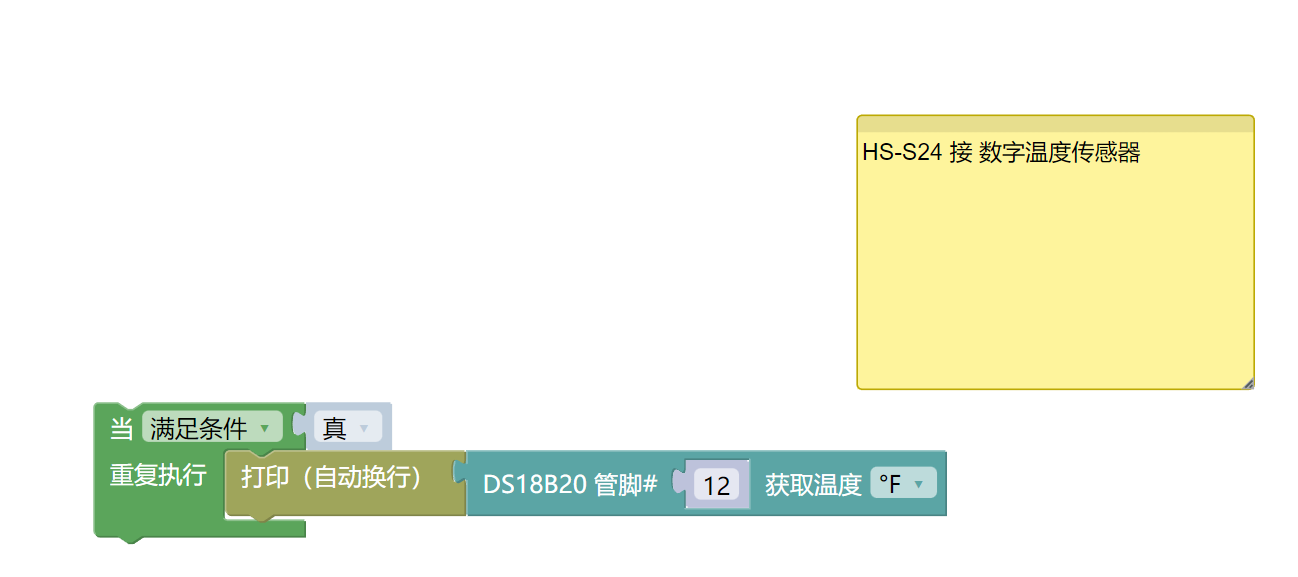
6, Miciqi Mixly Example Program (Graphical Language)
Arduino UNO Graphical Example Program:Click to download
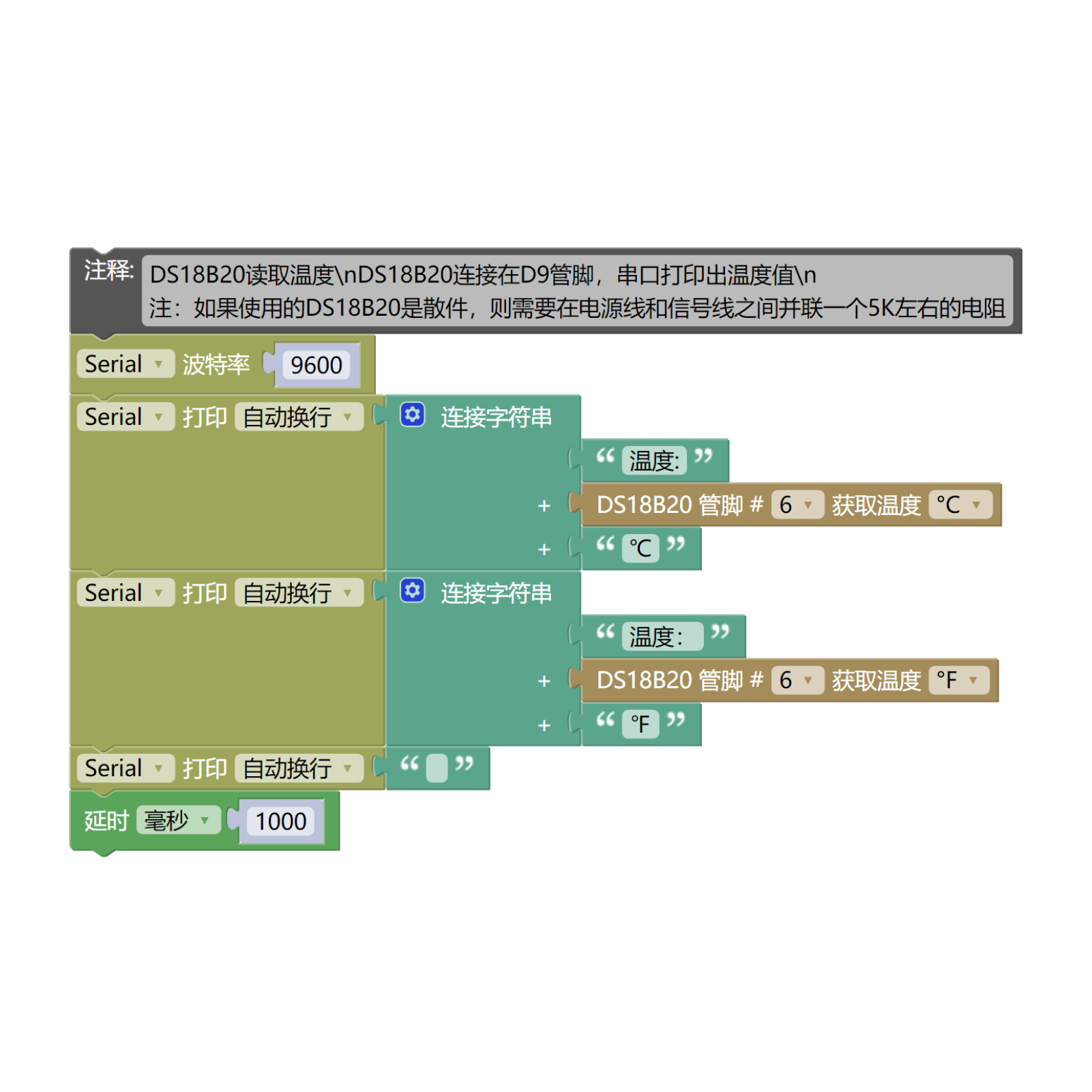
ESP32 Python Graphical Example Program:Click to download
7, Test Environment Setup
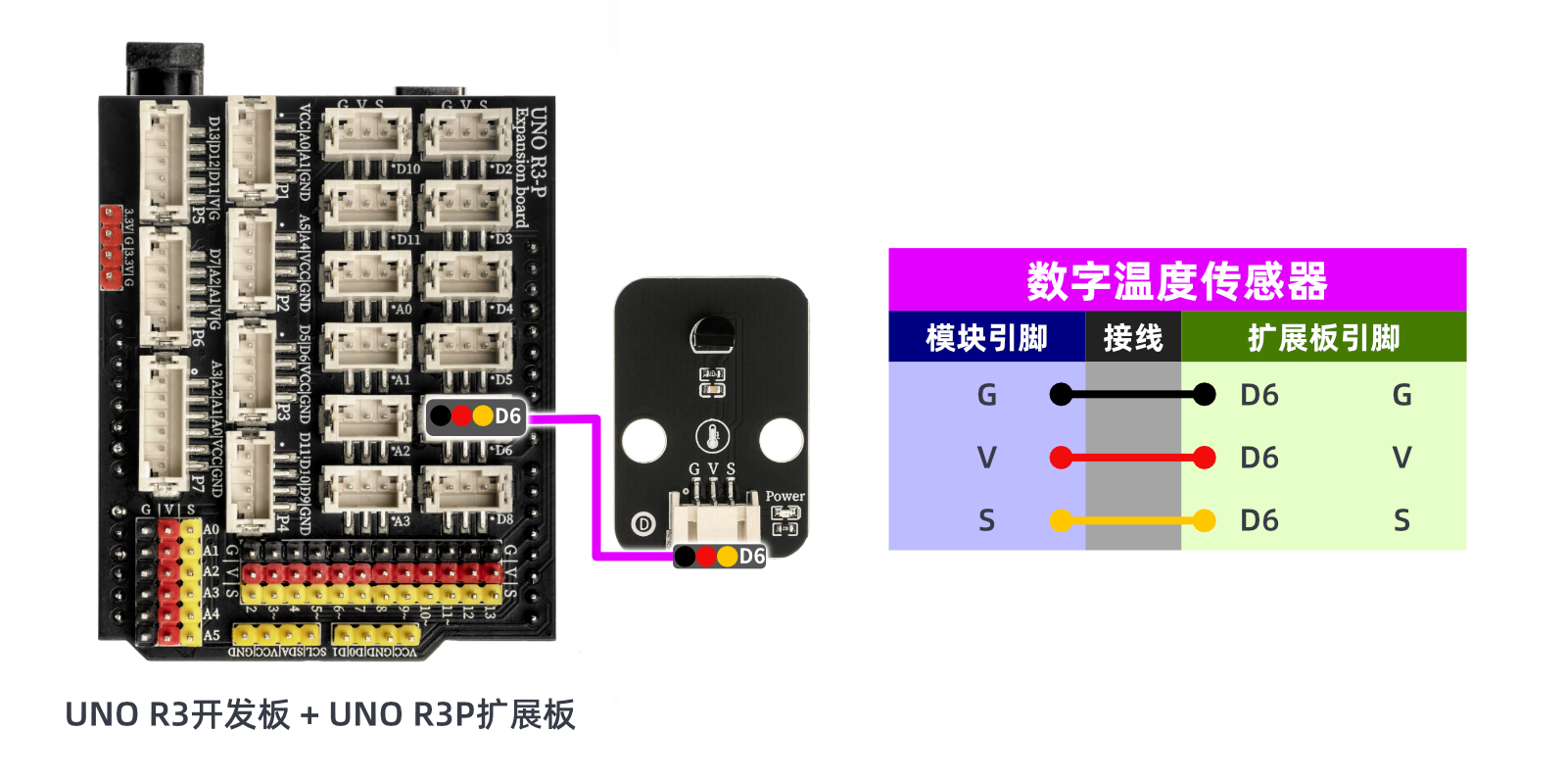
Arduino UNO Test Environment Setup
Prepare Components:
HELLO STEM UNO R3 DEVELOPMENT BOARD *1
HELLO STEM UNO R3 P EXPANSION BOARD *1
USB TYPE-C DATA CABLE *1
Digital Temperature Sensor (HS-S24P) *1
PH2.0 3P dual headed terminal line *1
Circuit wiring diagram:
ESP32 Python test environment setup
8. Video tutorial
Arduino UNO video tutorial:Click to view
ESP32 Python Video Tutorial:
9. Test conclusion
Arduino UNO Test Conclusion:
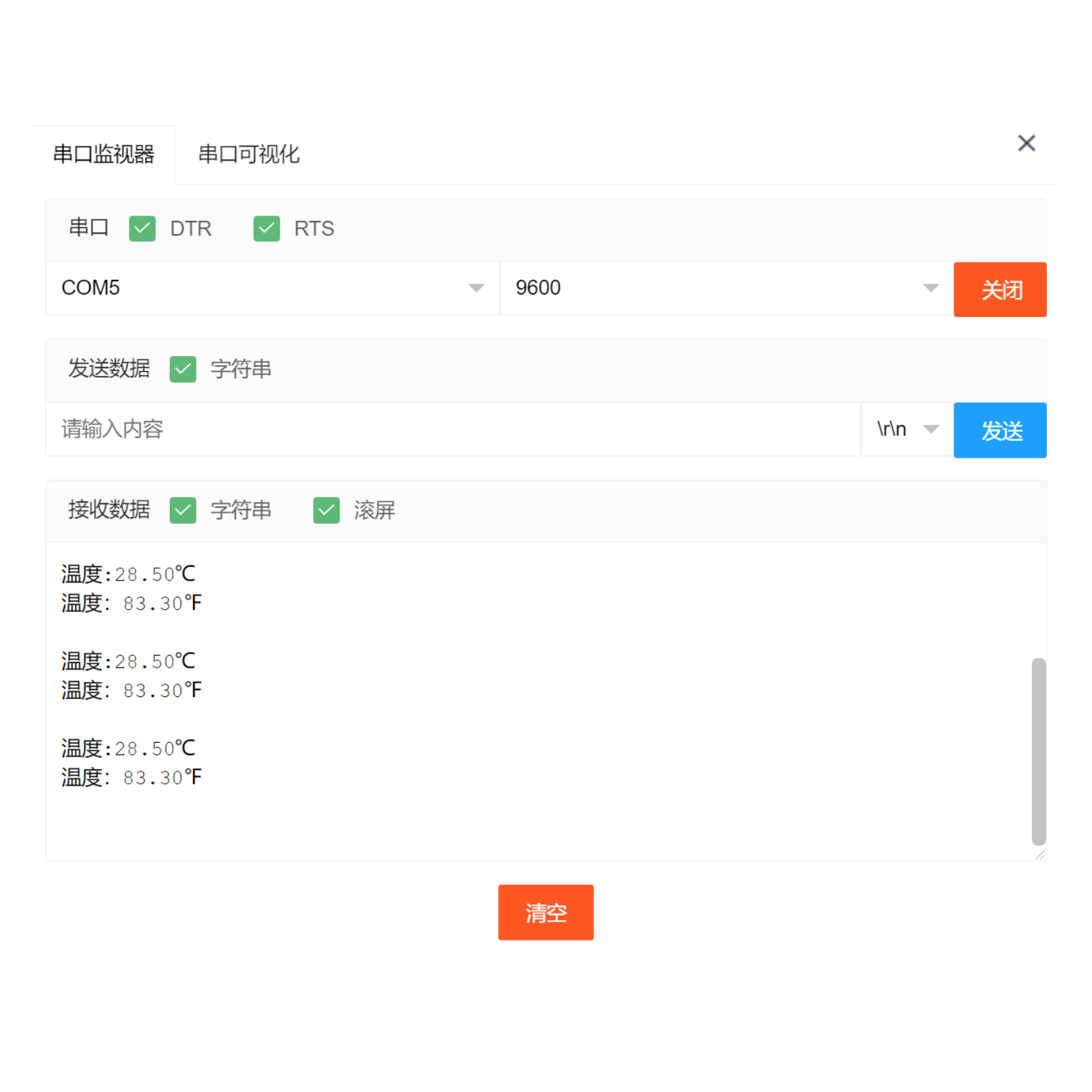
After connecting the device, burn the above program to the development board, open the serial port monitor, set the baud rate to 9600, and you can see the serial port print the current environmental temperature.
ESP32 Python test conclusion: