1. Introduction
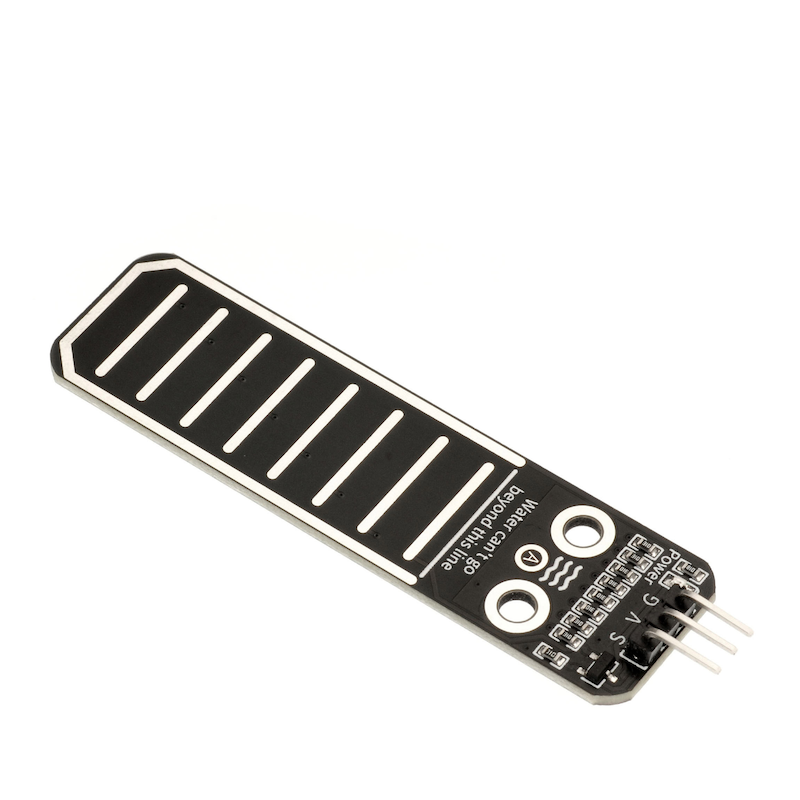
Water level sensors are designed specifically for water depth detection, and can be widely used for sensing rainfall, water levels, and even liquid leaks.When the water level sensor is placed in water, the more the water level exceeds the copper wire, the larger the simulated value becomes. Read the simulated value of the water depth sensor module, print it in the serial port. If you want to know the water depth, we directly place the sensor a little bit in front of the detection part in water, so we can know the simulated value when just placed in water. Knowing this value, we can derive a formula: the current simulated value is CA, the simulated value when placed underwater is DA, water depth = (CA - DA) / 100.
2. Schematic
Water Depth Sensor-HS-S37A SchematicClick to view
Module Parameters
Pin Name | description |
|---|---|
G | GND (Negative Power Input) |
V | VCC (Positive Power Input) |
S | Analog Signal Pin |
Power Supply Voltage: 3.3V / 5V
Connection Type: 2.54mm Header
Installation Method: Double Screw Fixed
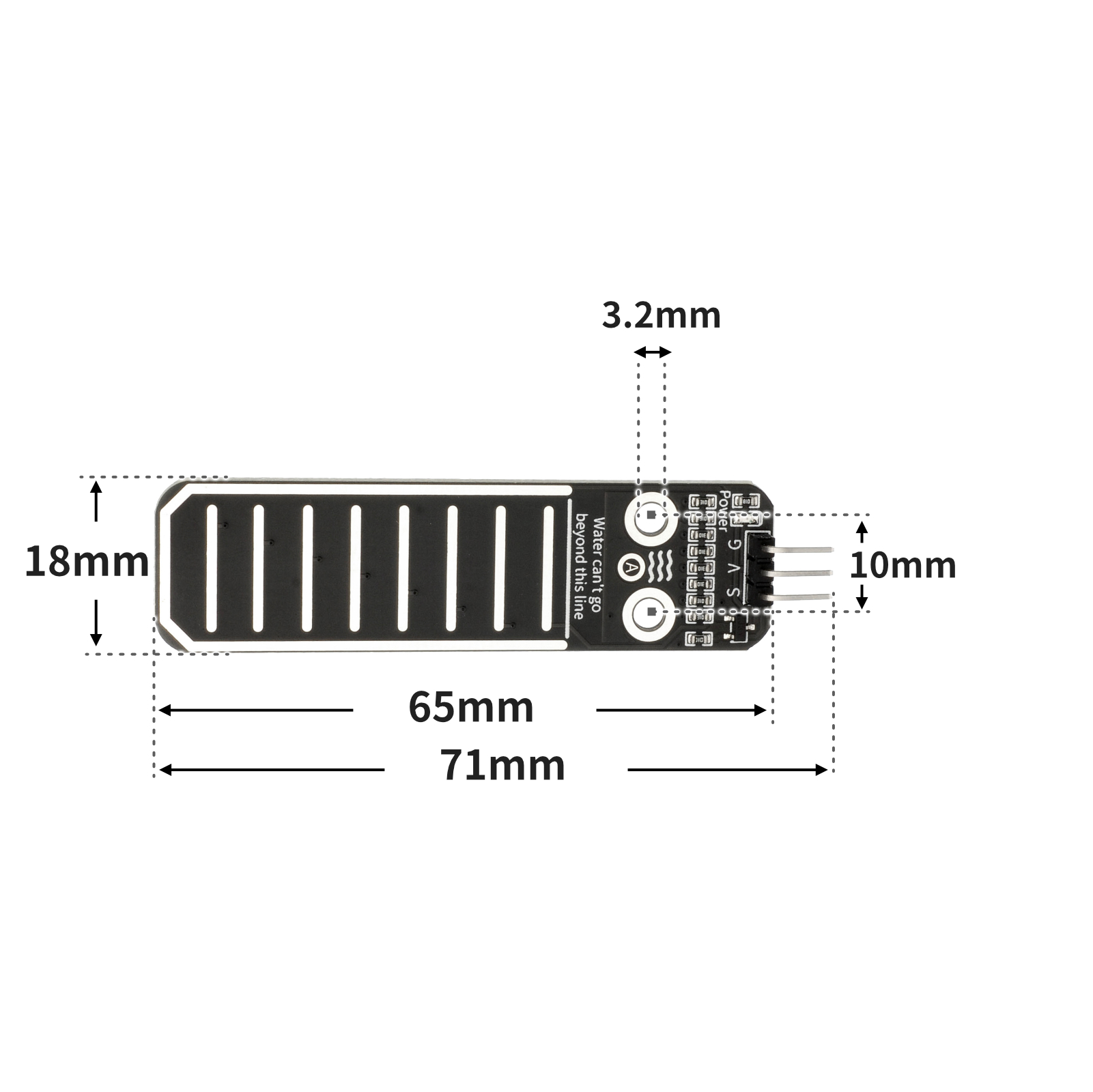
4, Circuit Board Size
5 of Arduino IDE example program
Attention: If prompted with an error message about the library file during program upload, please import the library file first!
Arduino IDE Library Download and Import Tutorial:Click to view
Example program (UNO development board):
volatile float num;
volatile int Buzzer;

void setup(){
  num = 0.0;
  Buzzer = 9;
  Serial.begin(9600);
  pinMode(A2, INPUT);
}

void loop(){
  //水深传感器接A2.,蜂鸣器接uno开发板D9
  //检测水越深,水深传感器模拟值越大;反之,水深传感器模拟值越小
  num = long(analogRead(A2));
  Serial.println(num);
  delay(500);
  if (num > 700) {
    //大概大于3cm
    pinMode(Buzzer, OUTPUT);
    digitalWrite(Buzzer,HIGH);

  } else {
    pinMode(Buzzer, OUTPUT);
    digitalWrite(Buzzer,LOW);

  }

}
6, ESP32 Python Example (for Mixly IDE/Misashi)
Choose the development board Python ESP32 [ESP32 Generic(4MB)] and upload in code mode
Attention: If prompted with an error message about the library file during program upload, please import the library file first!
Download and import tutorial for Mixly IDE ESP32 library:Click to view
Example program (ESP32-Python):
import machine


pin2 = machine.Pin(2, machine.Pin.OUT)
adc32 = machine.ADC(machine.Pin(32))
i = 0
while True:
    i = adc32.read_u16()
    print(i)
    if i >= 50000:
        pin2.value(1)
    else:
        pin2.value(0)
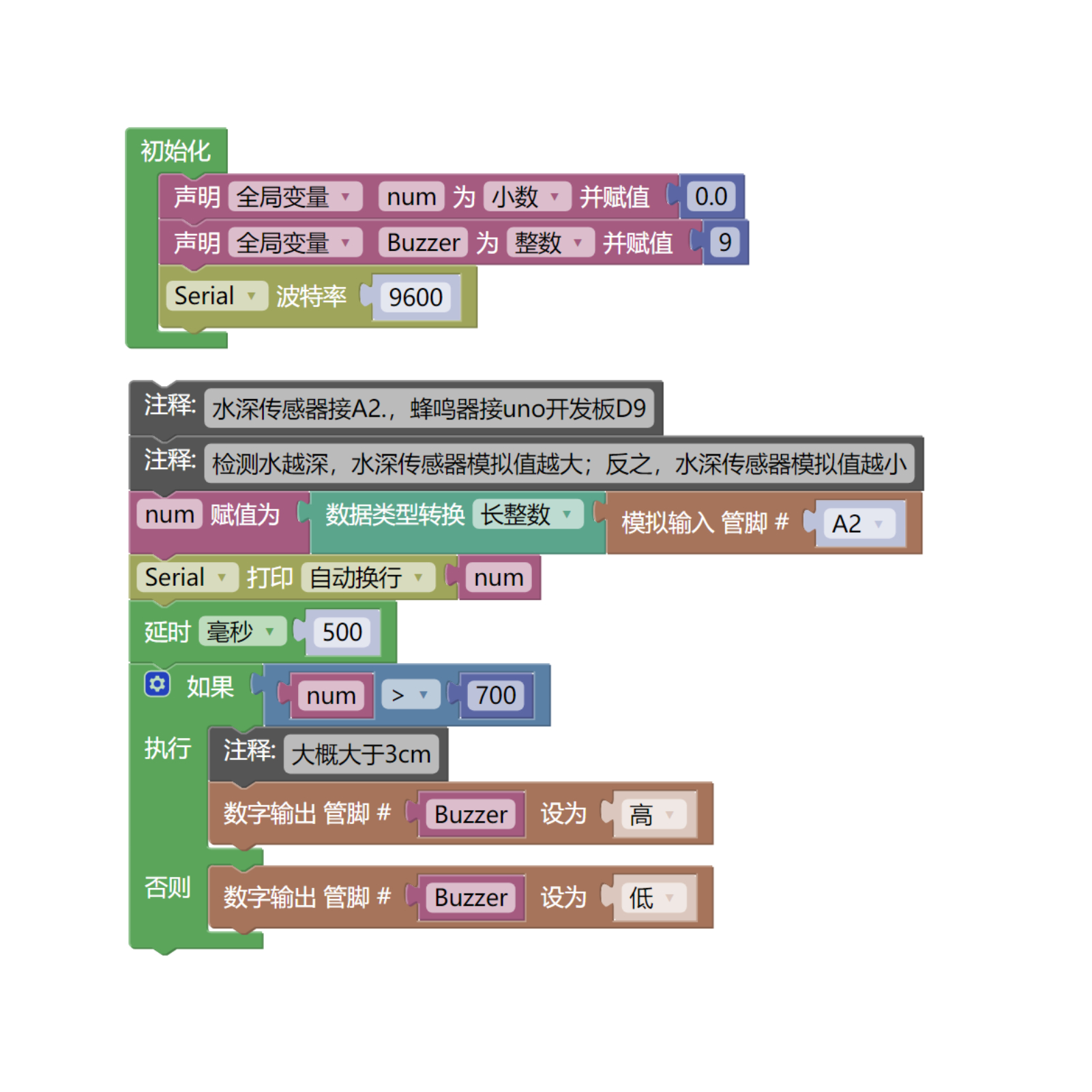
7, Mixly example program (graphical language)
Example program (UNO development board):Click to download
Attention: If prompted with an error message about the library file during program upload, please import the library file first!
Download and import tutorial of Mixly IDE Arduino library:Click to view
Example Program (ESP32 Development Board):Click to download
Attention: If prompted with an error message about the library file during program upload, please import the library file first!
Download and import tutorial for Mixly IDE ESP32 library:Click to view
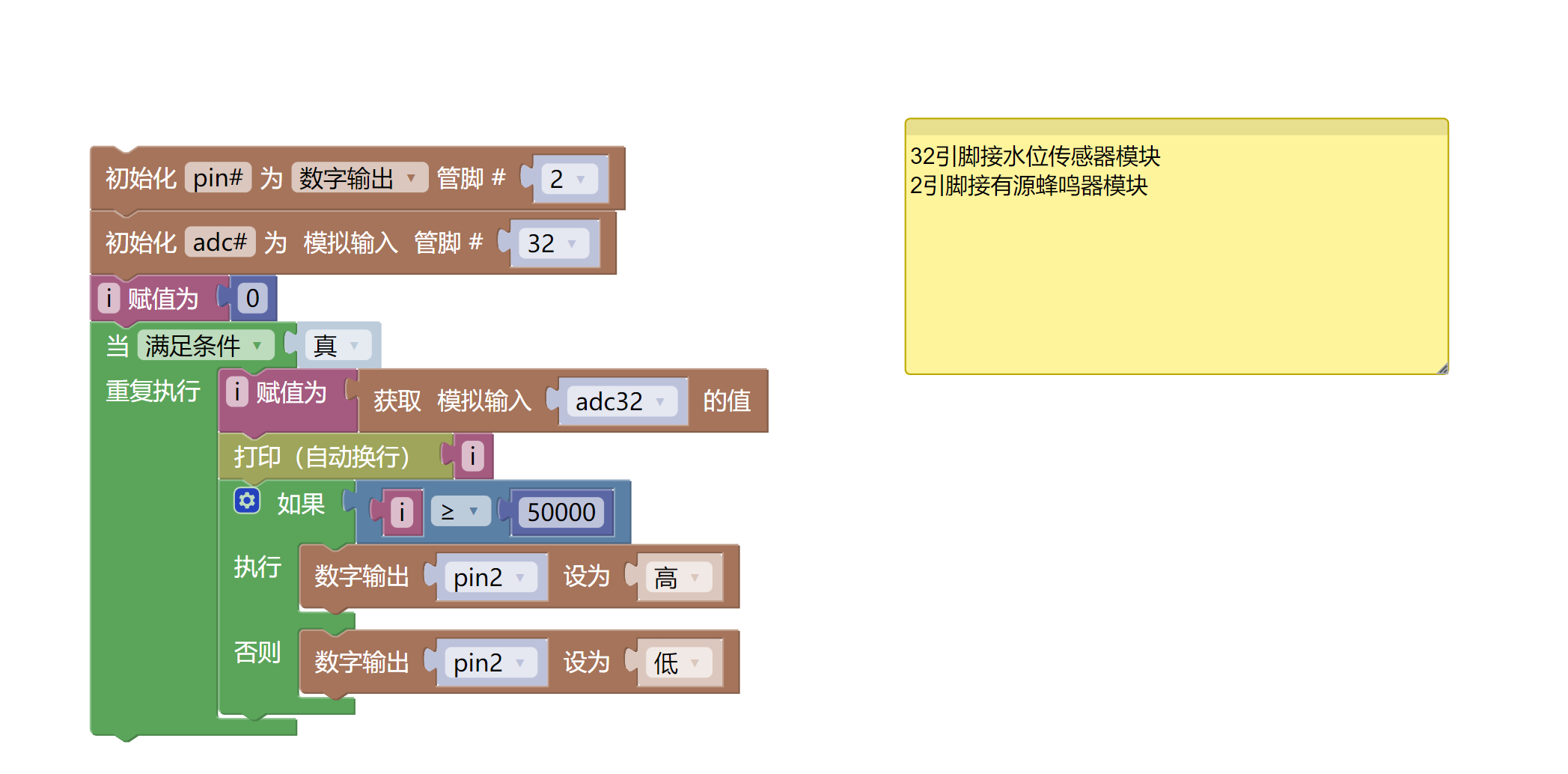
8. Setting up the Test Environment
Arduino UNO Test Environment Setup
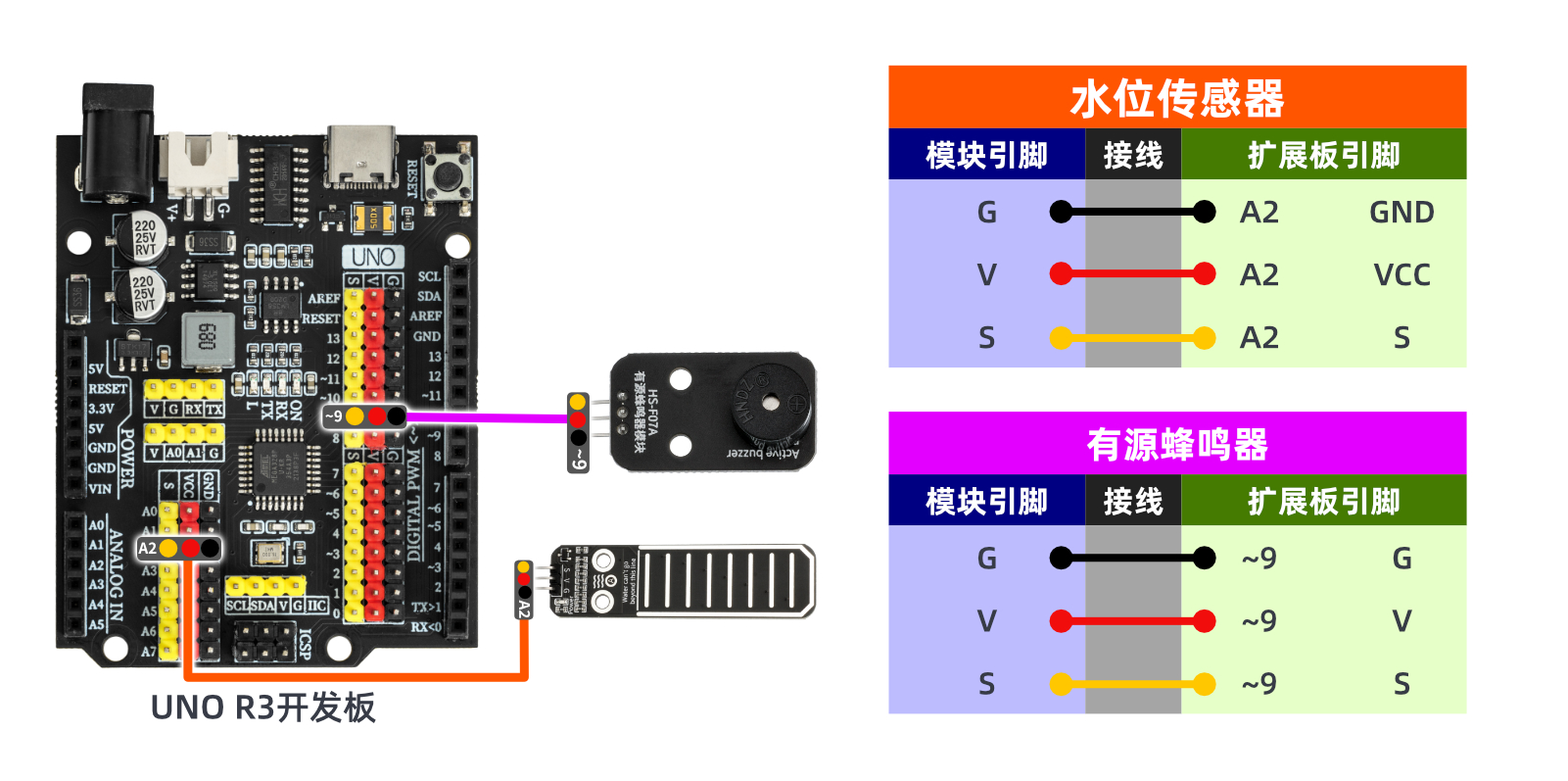
Prepare Components:
HELLO STEM UNO R3 PRO DEVELOPMENT BOARD *1
USB TYPE-C DATA CABLE *1
Water Level Sensor Module (HS-S37A) *1
Active buzzer module (HS-F07AB) *1
1P female to female Dupont wire *6 pieces or 3P female to female Dupont wire *2 pieces
Circuit wiring diagram:
ESP32 Test Environment Setup
Prepare Components:Pending update...
Circuit wiring diagram:Pending update...
9, Video tutorial
Video tutorial:Click to view
10, Test results
Arduino UNO test results:
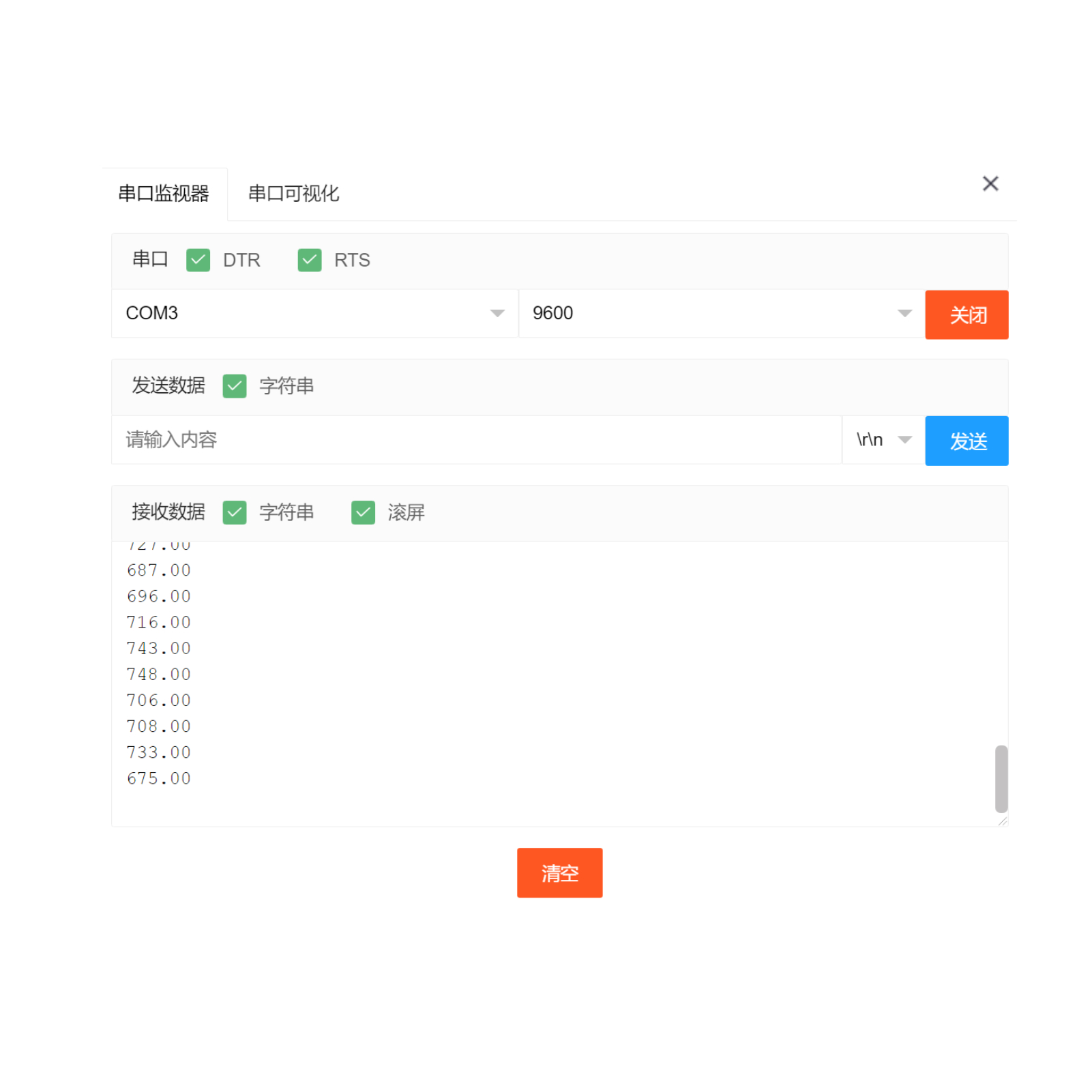
After the device is connected to the wire, upload the above program to the Arduino UNO development board, open the Mxily serial port monitor, slowly put the water level sensor module into the water, and the serial port outputs the simulated value of the water depth sensor greater than 700 (equivalent to greater than 3cm), the buzzer sounds.