
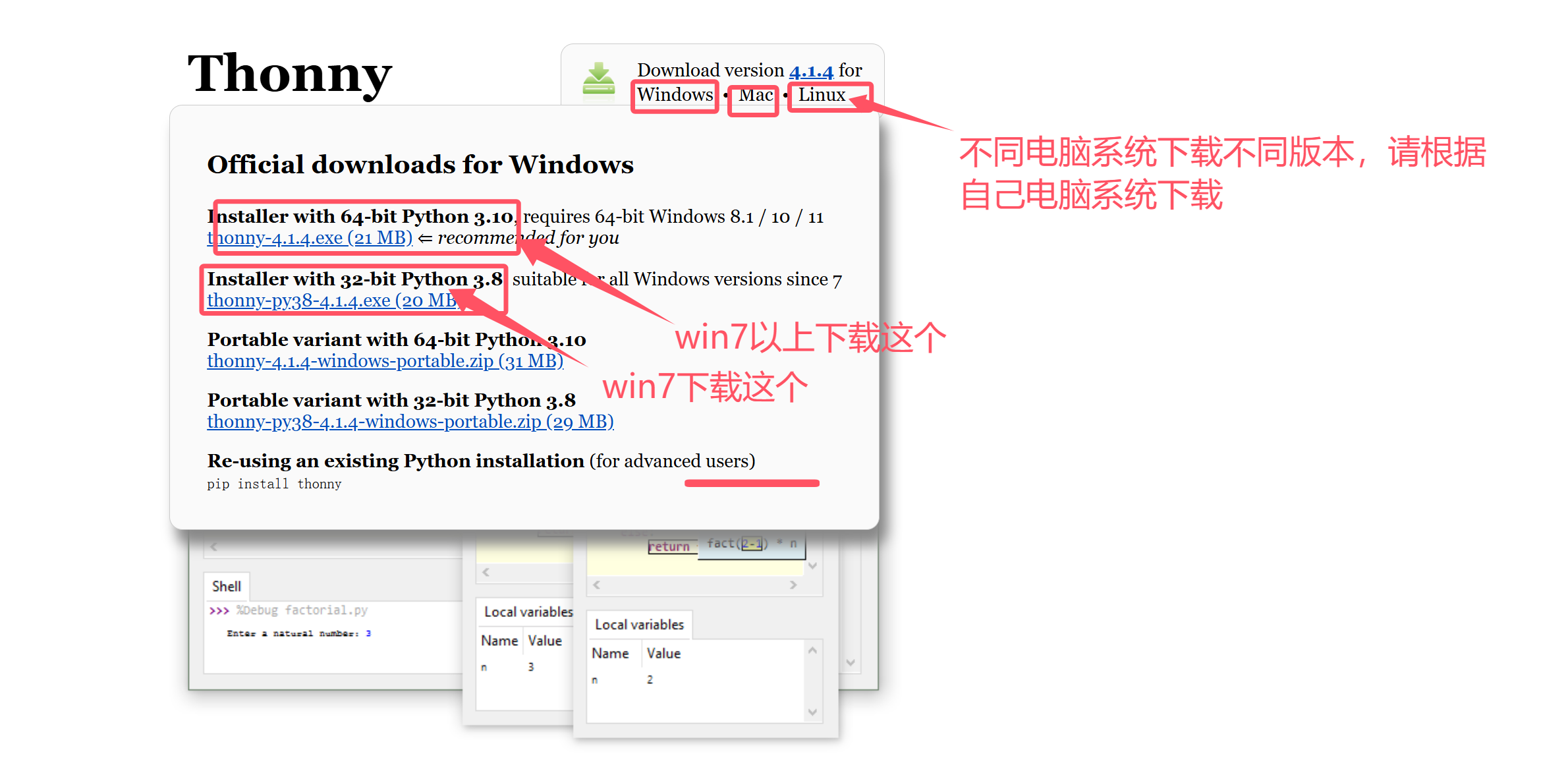
1.Download and install Thonny software
Open.ThonnyOfficial website of the softwareThonny, Python IDE for beginners
Download the corresponding version of the software according to your computer system
Just keep clicking default during the software installation, it won't affect the use
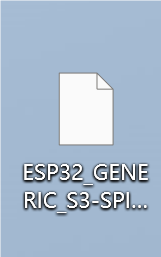
Download the 2.micropython firmware
micropython firmware:Click to download
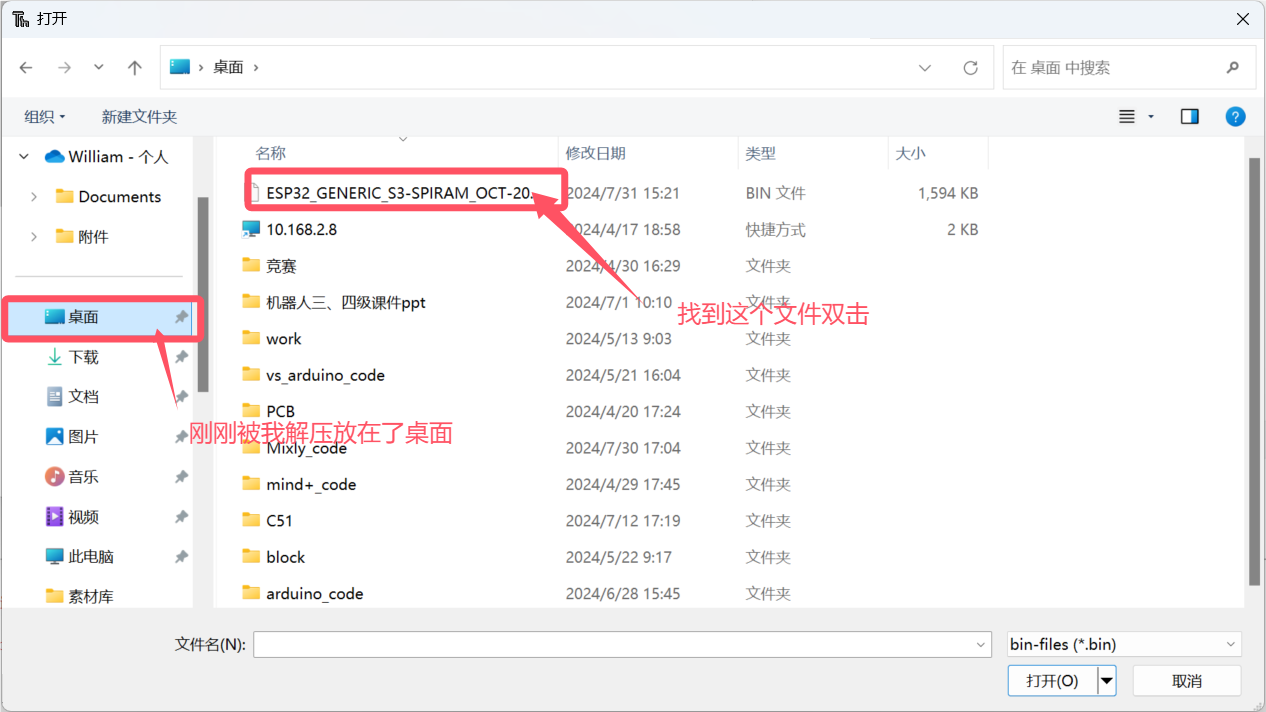
Download and unzip the firmware and place it on the desktop
3. Download the micropython firmware for the development board
Open the one that was just downloadedThonny software
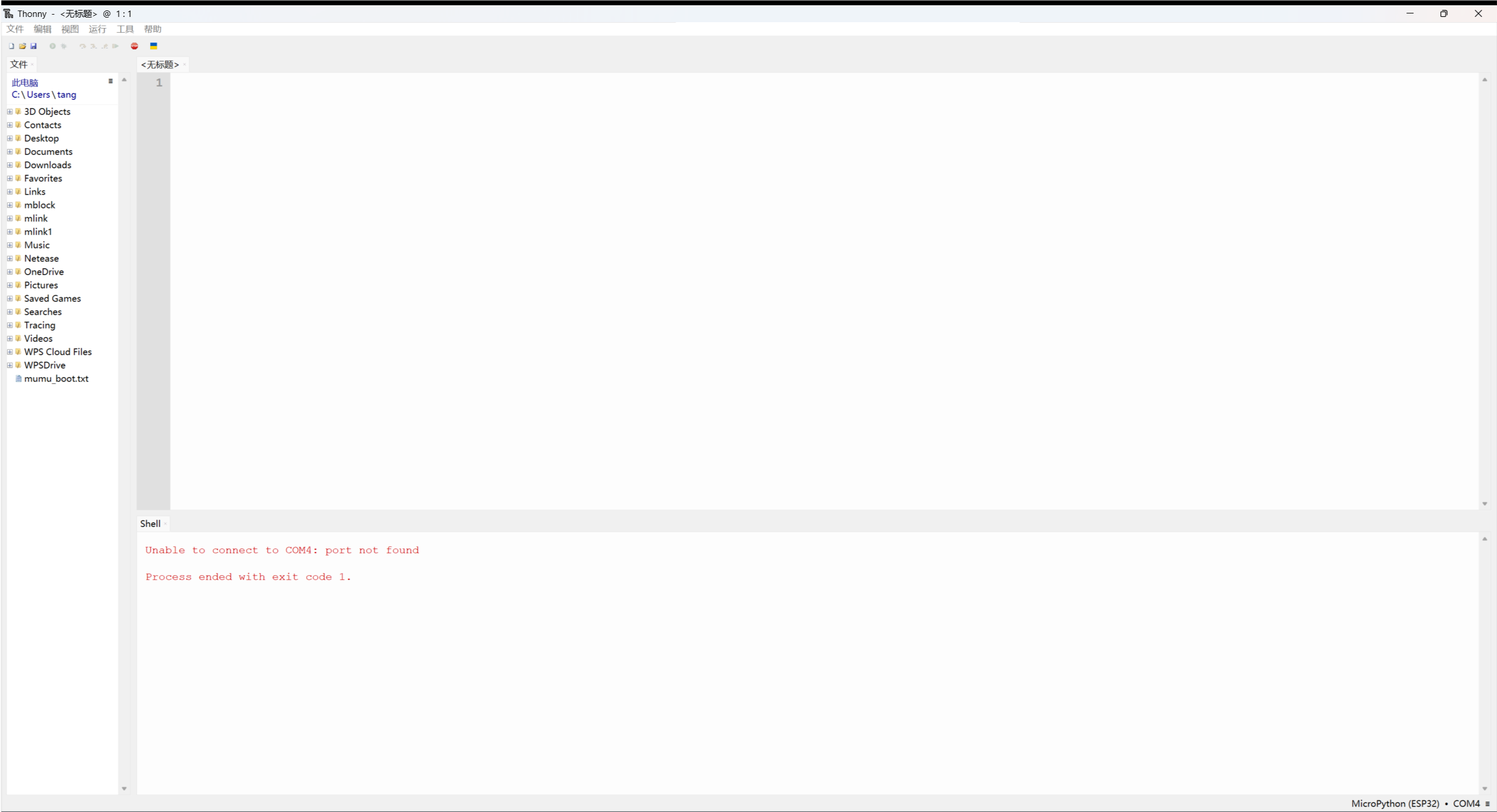
Click esp32
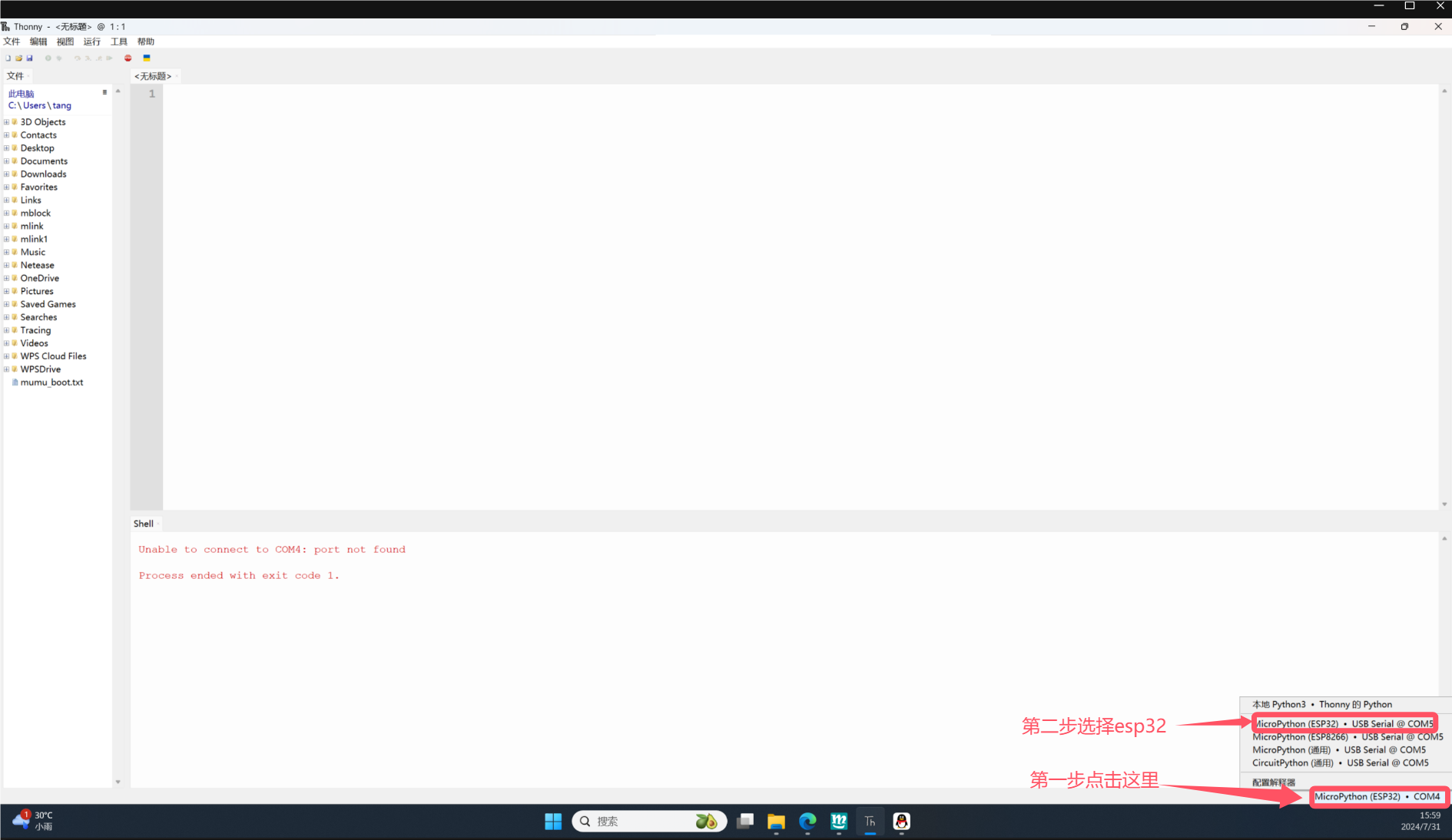
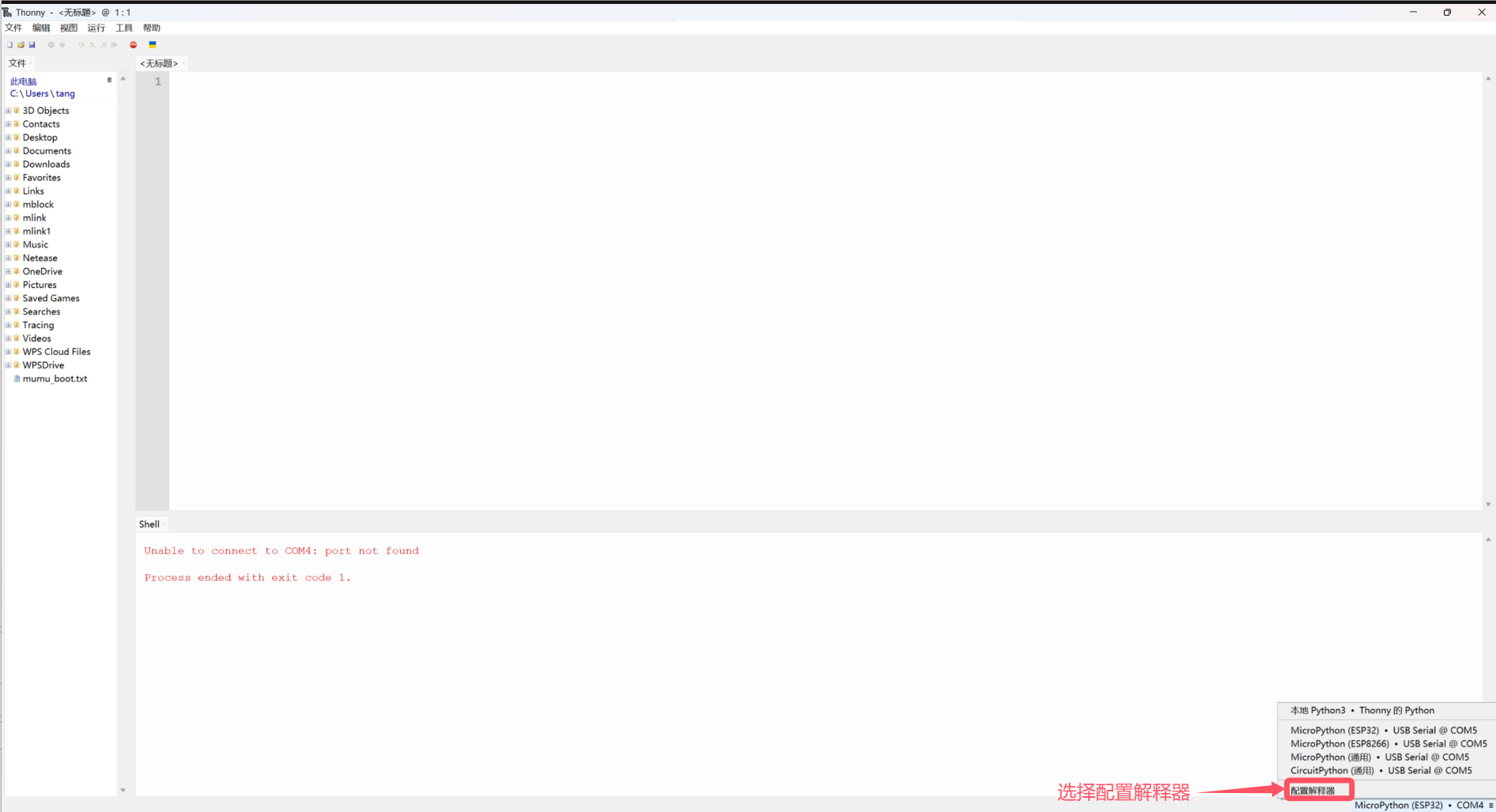
Select configuration interpreter
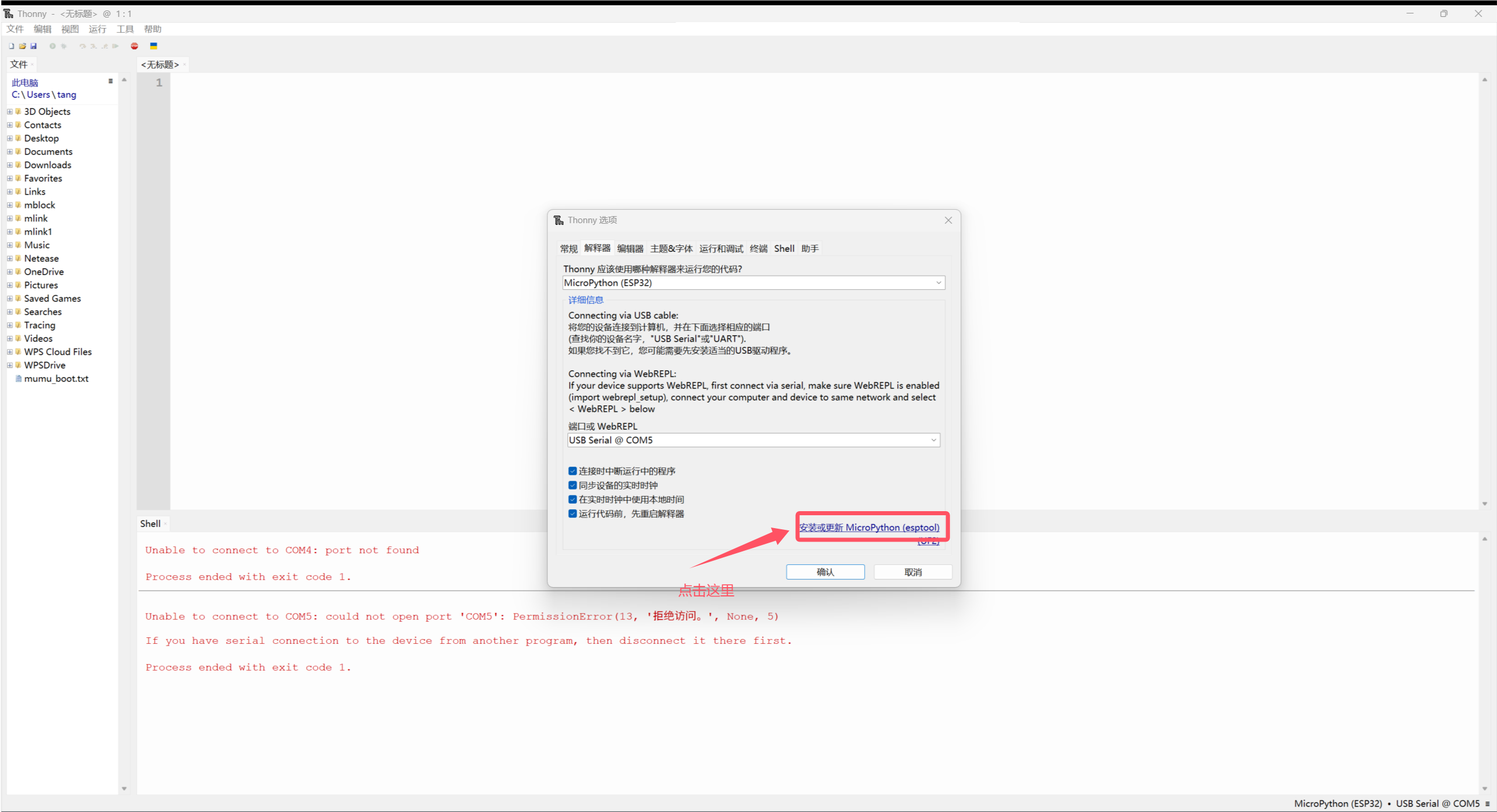
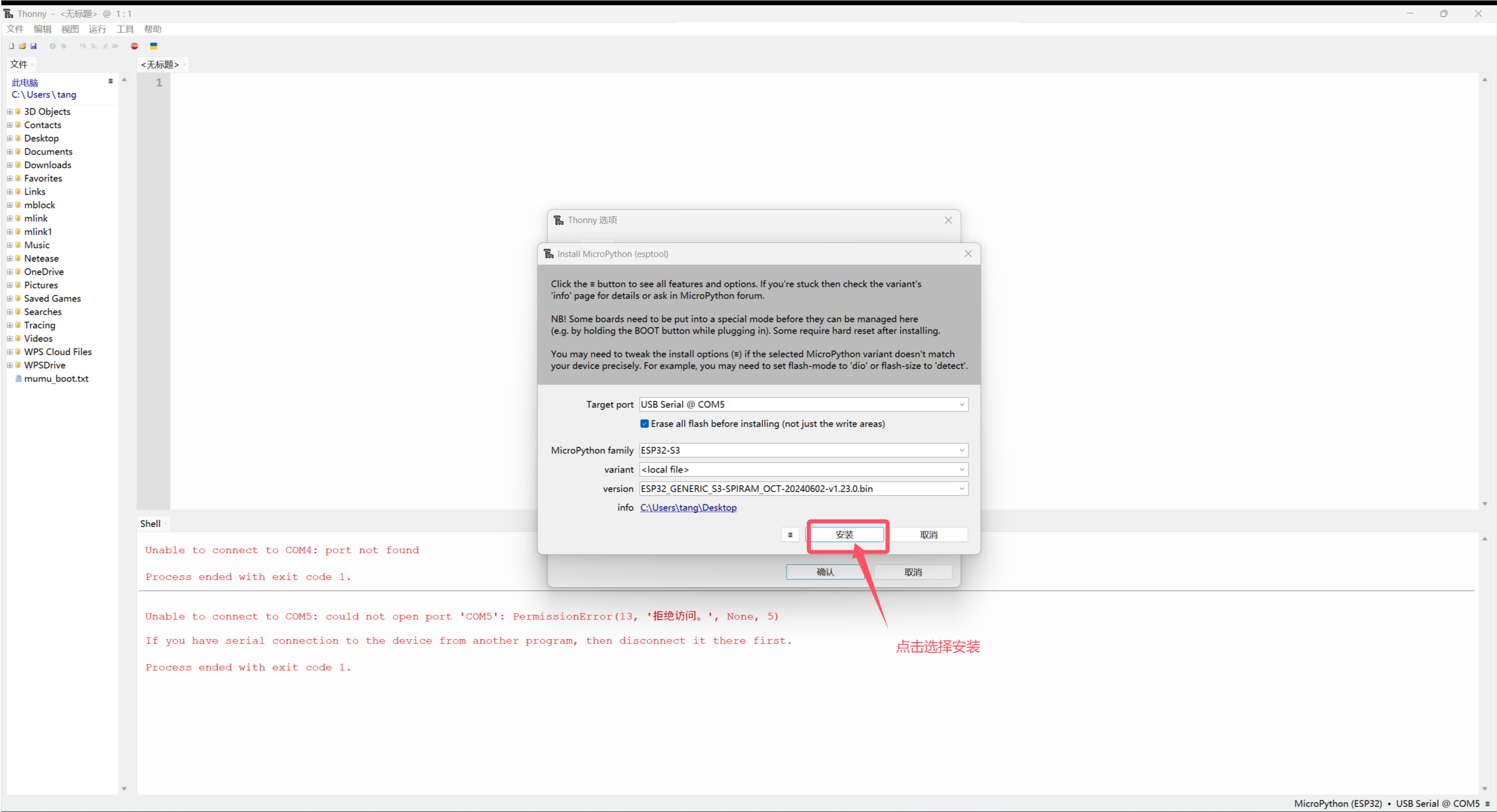
After clicking, select install or update MicroPython (esptool)
Open the file selection symbol, select the just downloaded micropython firmware
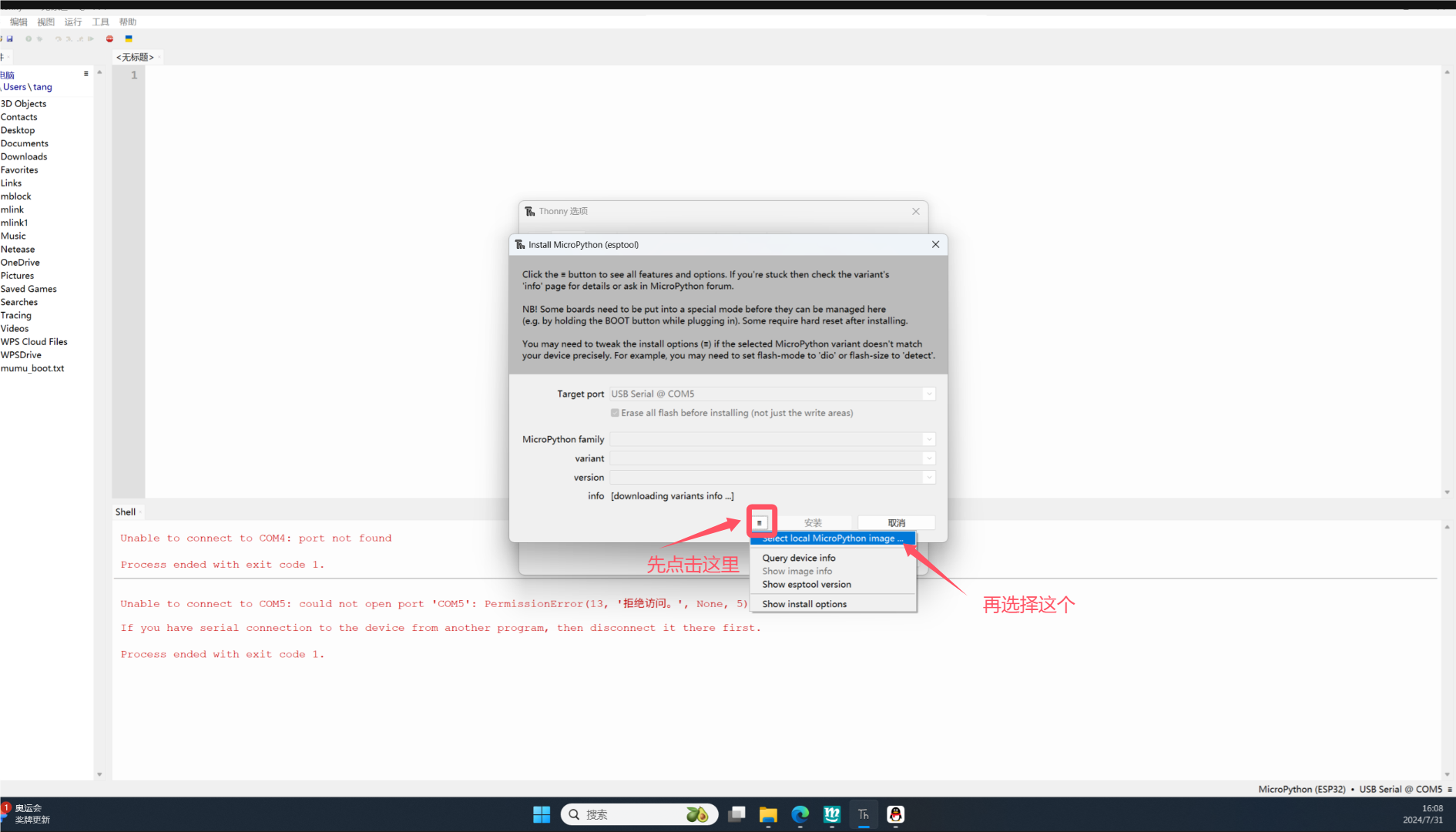
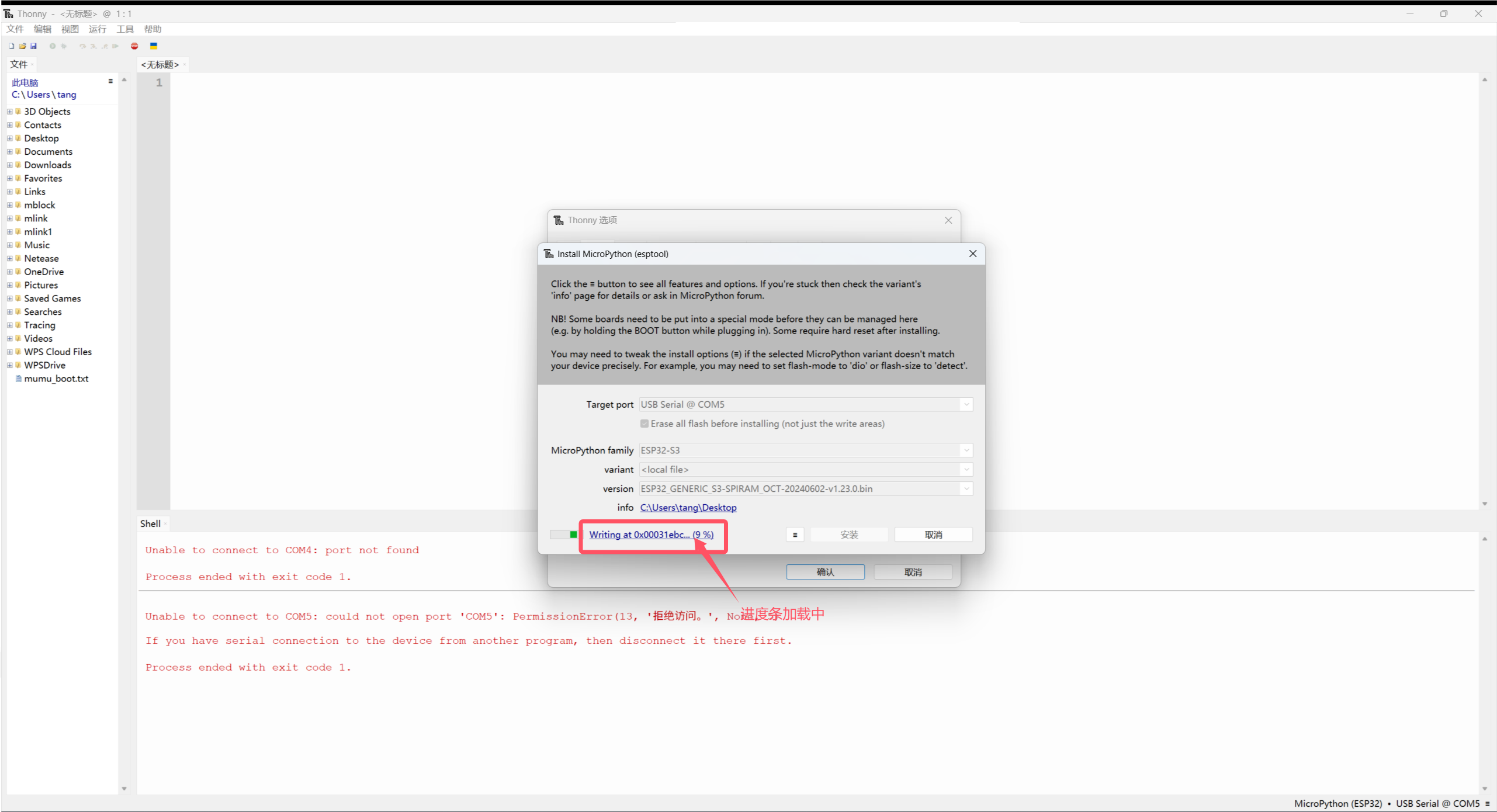
Select install and wait for about 1 minute
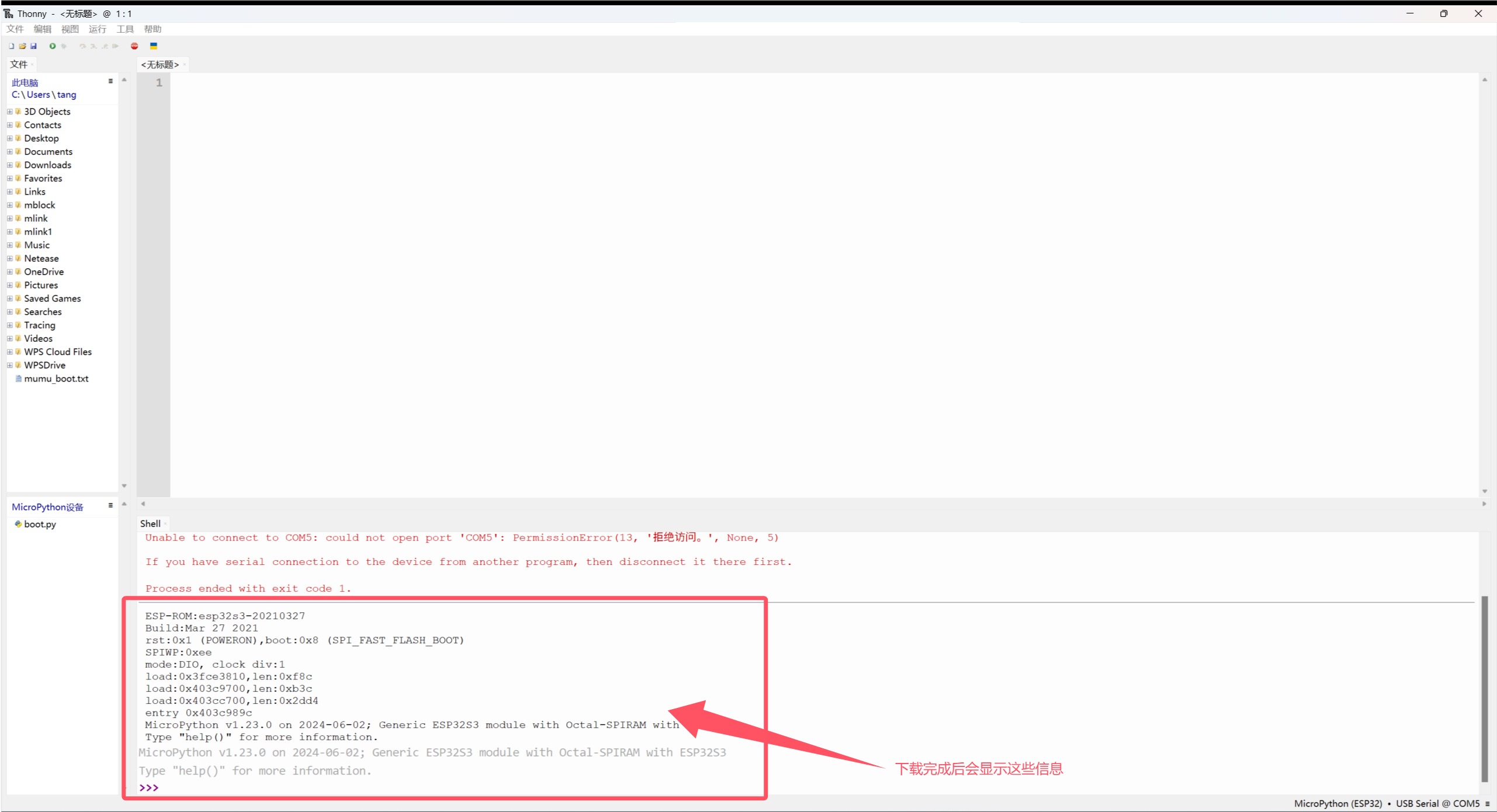
Download completed
4. Introduction to Micsense software
Mixly is a free open-source graphical programming software based on Google's graphical programming framework.It is a free and open-source graphical programming tool for creative electronics development; it is a complete ecosystem for creative electronics education; it is a stage for makers to realize their dreams.
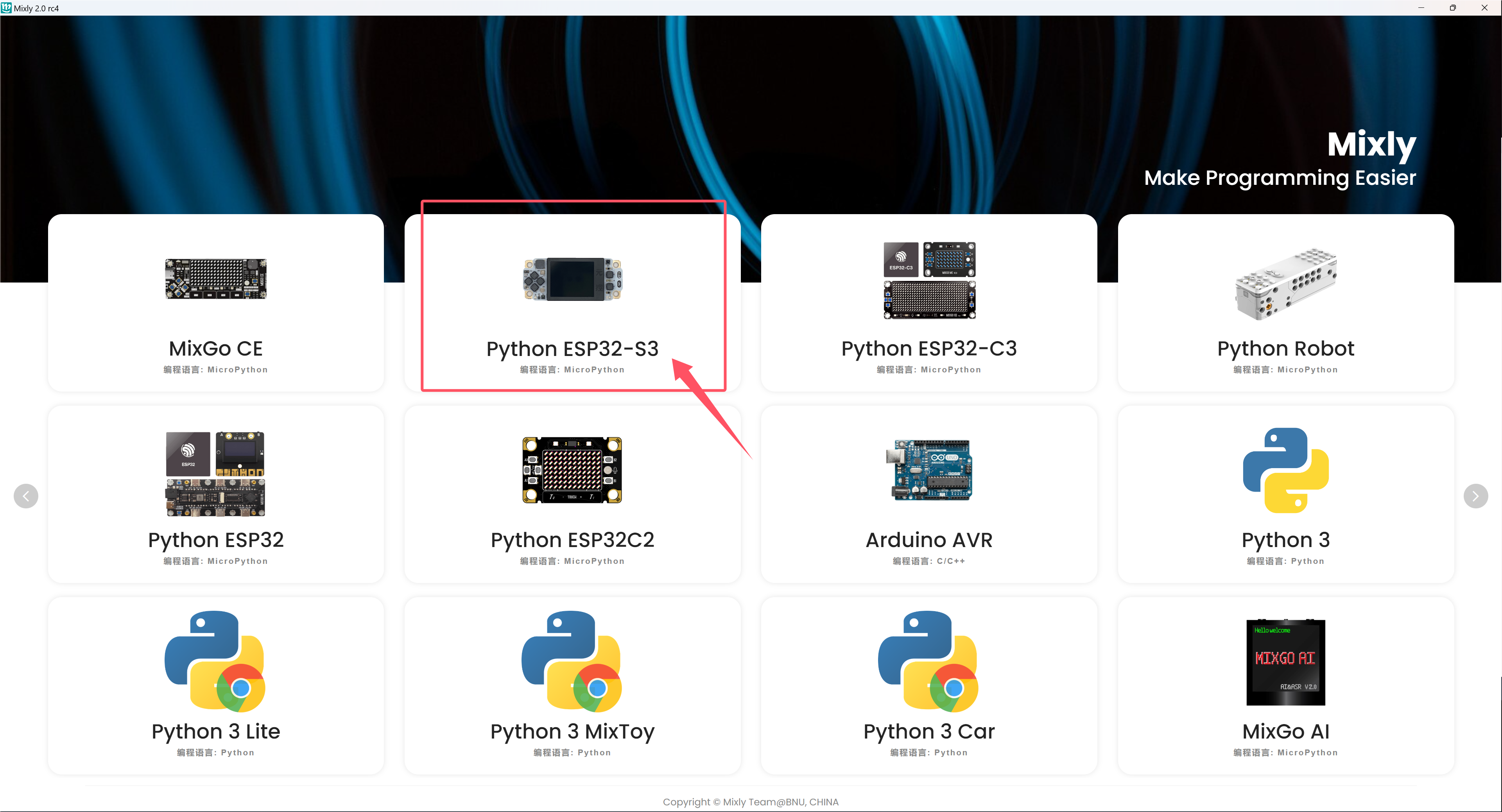
The software is installed, we click on the mixly icon on the computer desktop to open the software, and select Python ESP32-S3
Before uploading the code program to the development board or compatible board, you must first understand the functions of each area and interface that appear in the Misqi software toolbar.
Interface layout
The interface is divided into four major functional area blocks in total.
1. Basic functional block area
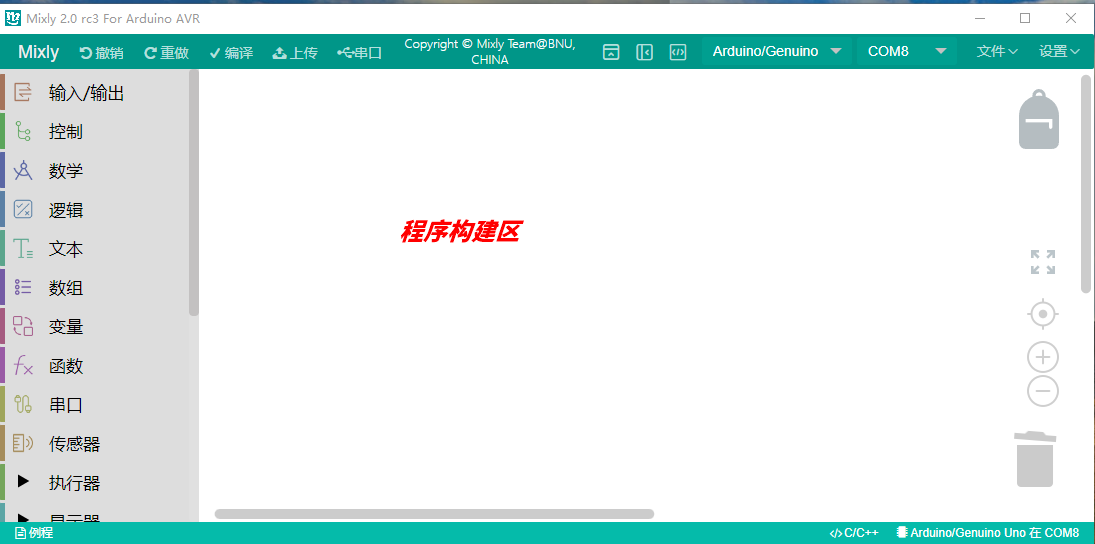
2. Program construction area
3. Code area
4. Information prompt area
Basic Function Block Area
Input/Output: IO-related Function Blocks
Control: Program Flow Control-related Function Blocks
Math: Mathematical Operation-related Function Blocks
Text: Functions related to string operations
Array: Functions related to arrays
Logic: Functions related to logical relationships
Serial Port: Functions related to serial communication
Communication: Ethernet, infrared remote control and other communication function blocks
Storage: Data storage related function blocks (Advanced view)
Sensors: General sensor related function blocks
Actuator: General actuator related function blocks
Display: Display related function blocks
Ethernet: Ethernet communication function block (advanced view)
Variables: Variable operation related function blocks
Function: Function-related feature block
Custom Module: Custom code feature block (Advanced view)
Program Building Area
The area is for program function concatenation.Drag the function block from the left block area into the program construction area for assembly.The bottom right corner of the area has a trash can, where you can drag in unused code to delete it, or directly drag unused code to the leftmost side (module selection area), which can also delete code.
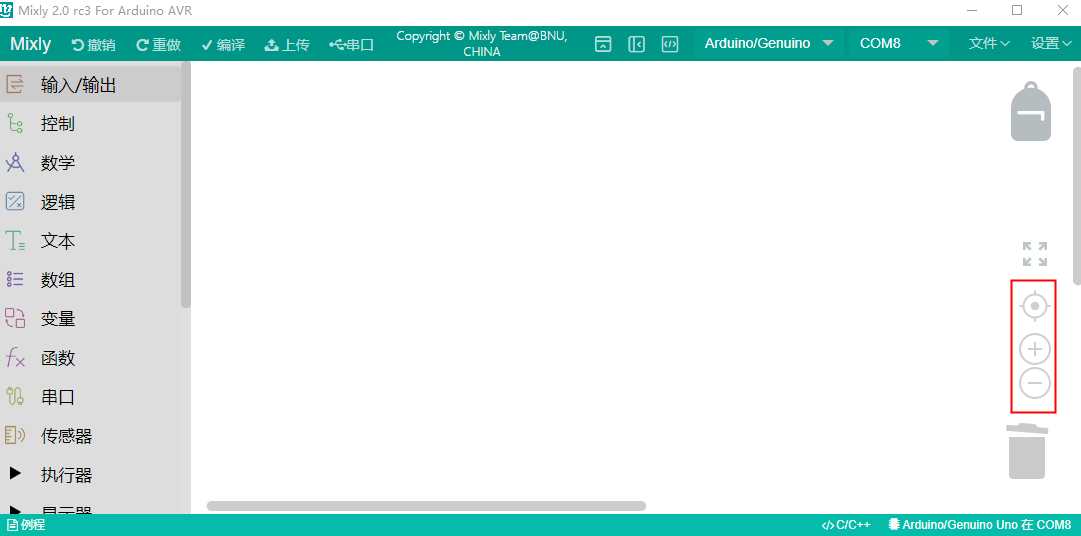
View Zoom
There are two shapes above the trash can, one is ⊕ and the other is Θ. The shape can be zoomed in or out to adjust the program building area module.
The size. There is a button above ⊕, the function of which is to restore the module to the standard size and center it.
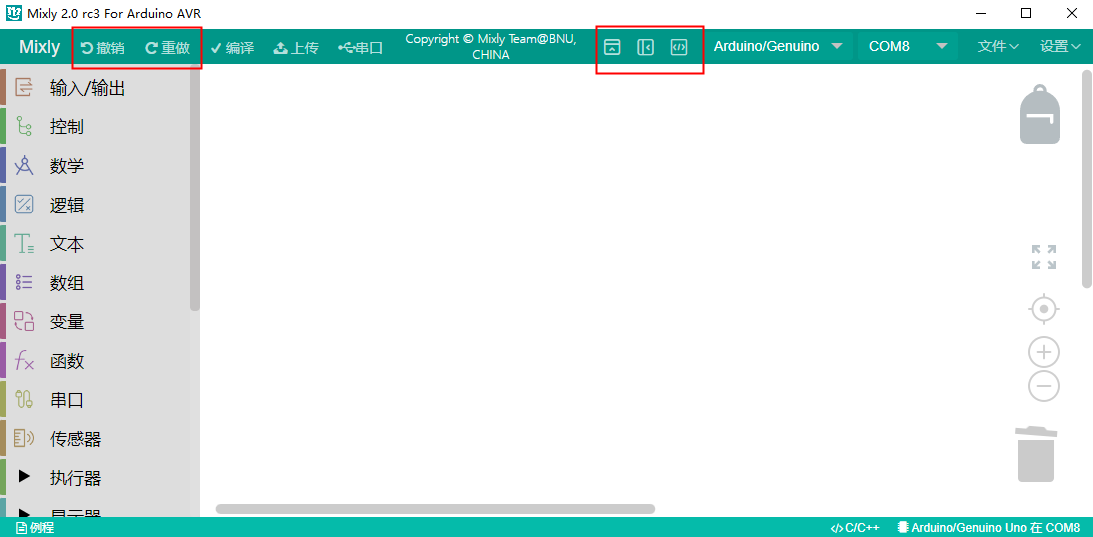
Function switch
Language switch: You can also switch the display language in the settings at the top right of the area.
Theme Switch: In the settings, the theme can be switched between normal view and advanced view to switch between views.
Programming Mode Switch: In the settings, the code can be switched to change the programming mode.
Undo/Redo: The undo function is available when a module is mistakenly deleted while writing code, and you can click the left arrow or press Ctrl+Z directly to restore the mistakenly deleted code; redo is the opposite of Ctrl+Z.
File Operation Area
New: Create Project File
Open: Open Project File
Save: Save Project File
Save As: Save Project File As
Export Library: Export the current project as a library file
Import Library: Import the third library file
Manage Library: Operations such as deleting and renaming libraries
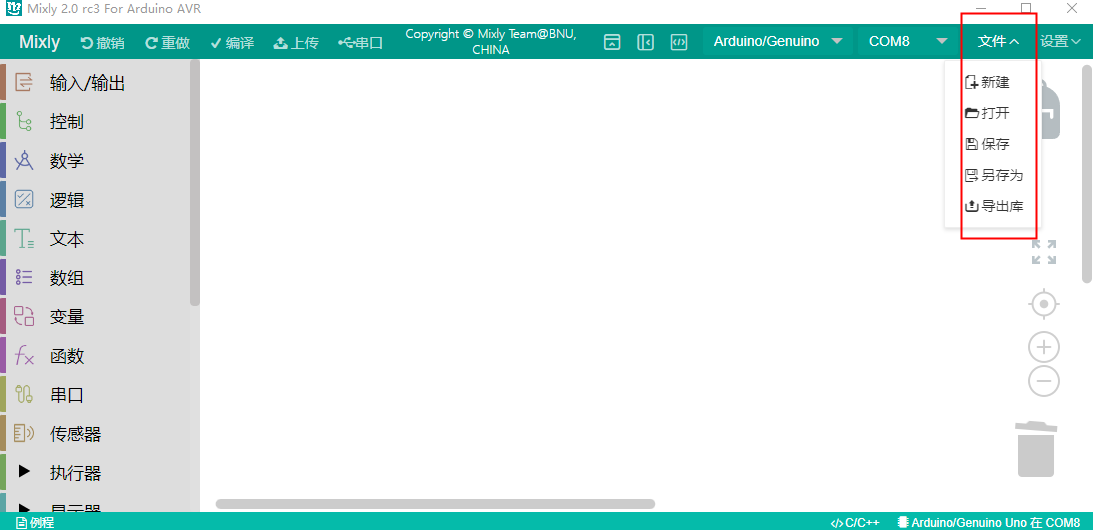
Library files are for convenient code sharing. Integrating a function into a single function. After exporting the library file, it can be shared with others.
Code area
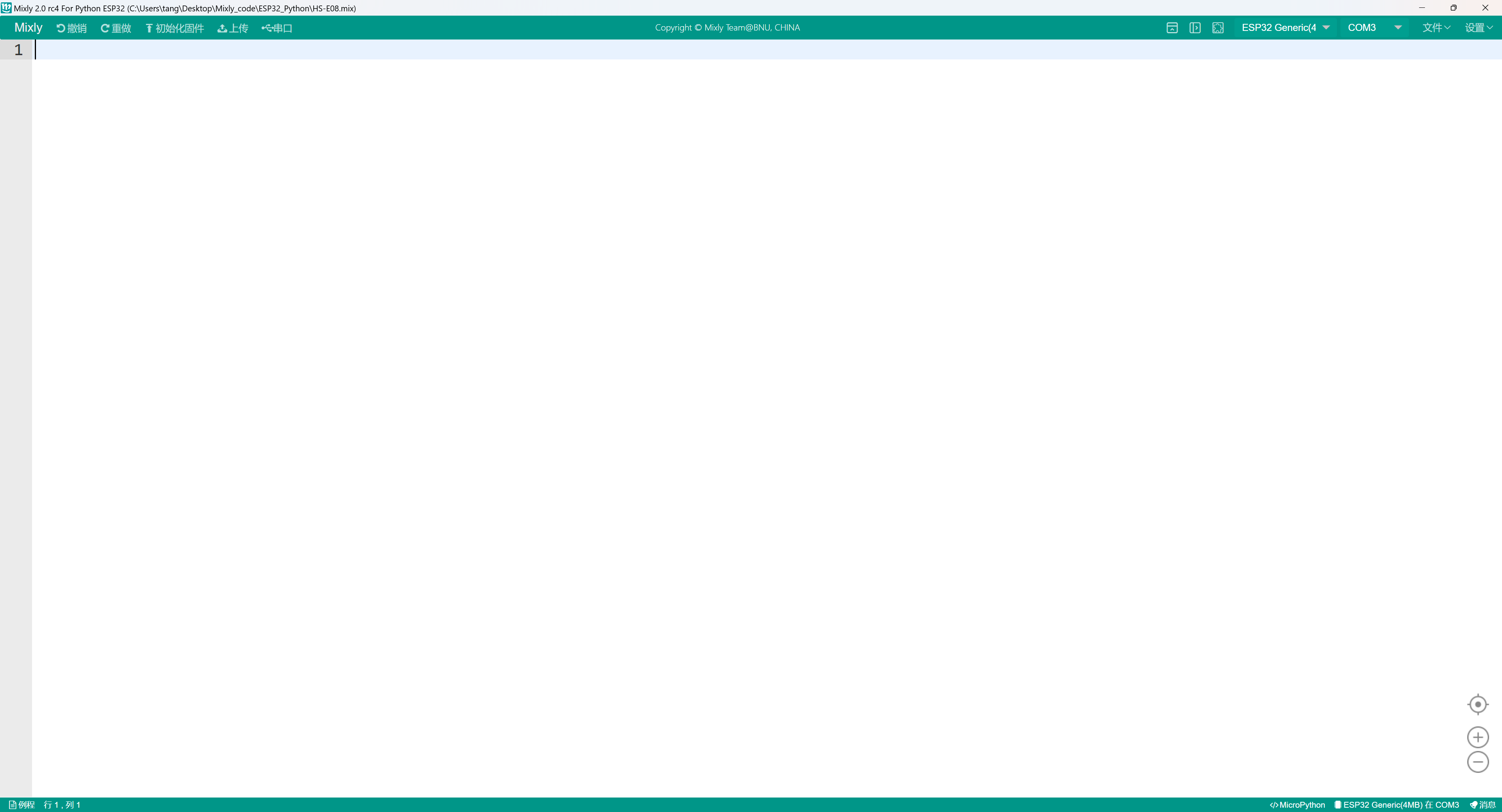
Program download and serial port monitoring
Compile: The program is compiled into machine executable code. The compilation process and results will be displayed in the information display area.
Motherboard Selection: Select the type of motherboard and the connected ports.
Serial port monitoring: Used to monitor information sent from the motherboard via the serial port or to send information to the motherboard. Requires programming. Mainly used for debugging programs or displaying information.
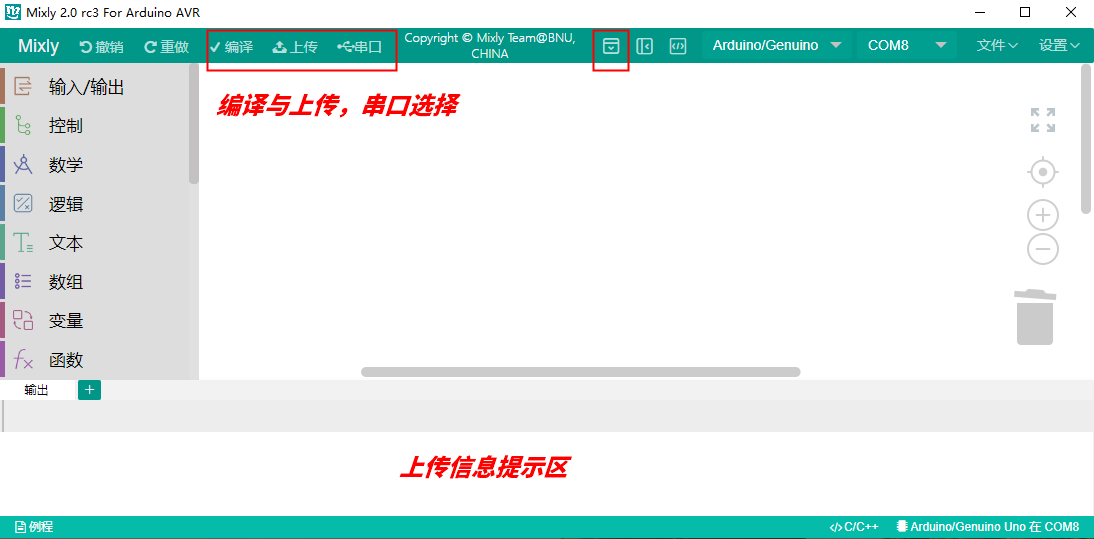
It should be noted that the serial port monitoring window should be closed when uploading the program. Otherwise, the program upload will fail.
5. Example program upload
Click on the mixly icon on the computer desktop to open the software and select Python ESP32-S3
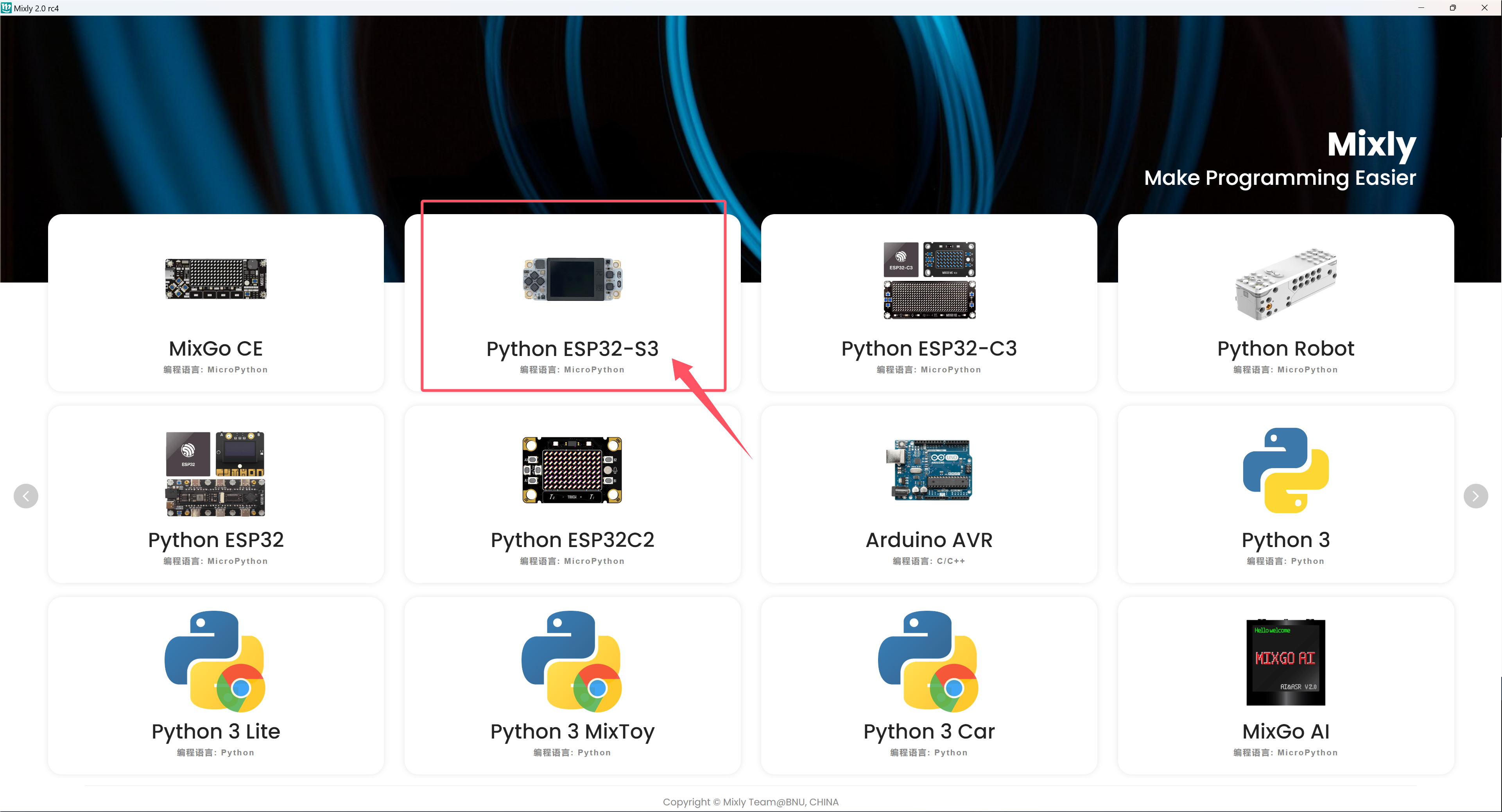
Use a USB data cable to connect the ESP32-S3 development board to the computer. The blue power indicator light should light up.
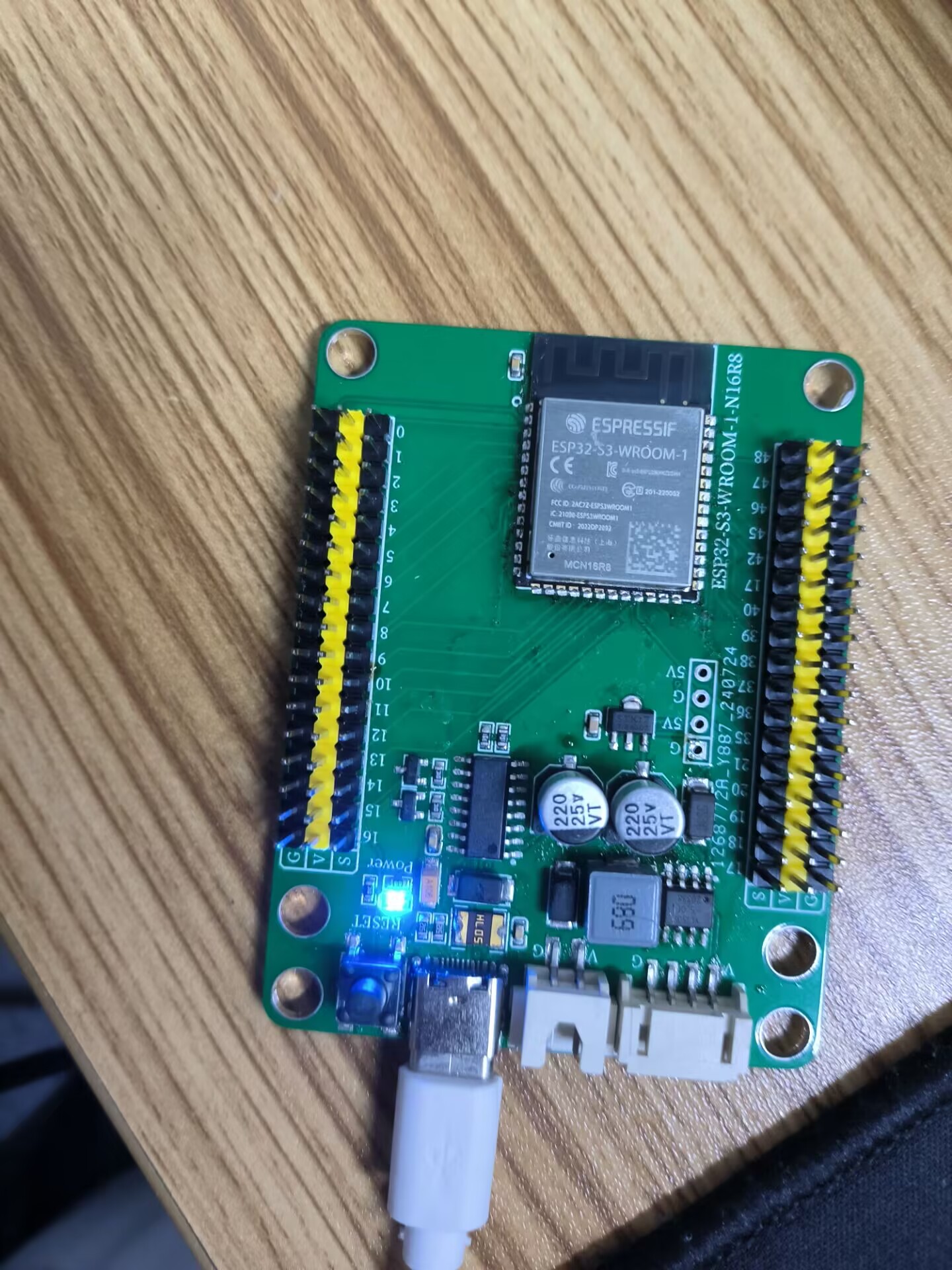
If Mixly does not recognize the USB port:
1. Have you installed the USB to serial port driver CH341SER?
2. Is the USB cable in good condition?
3. Is the USB cable connected to the computer's UBS interface?
Attention: To avoid errors, the COM port should match the port displayed in the Device Manager.
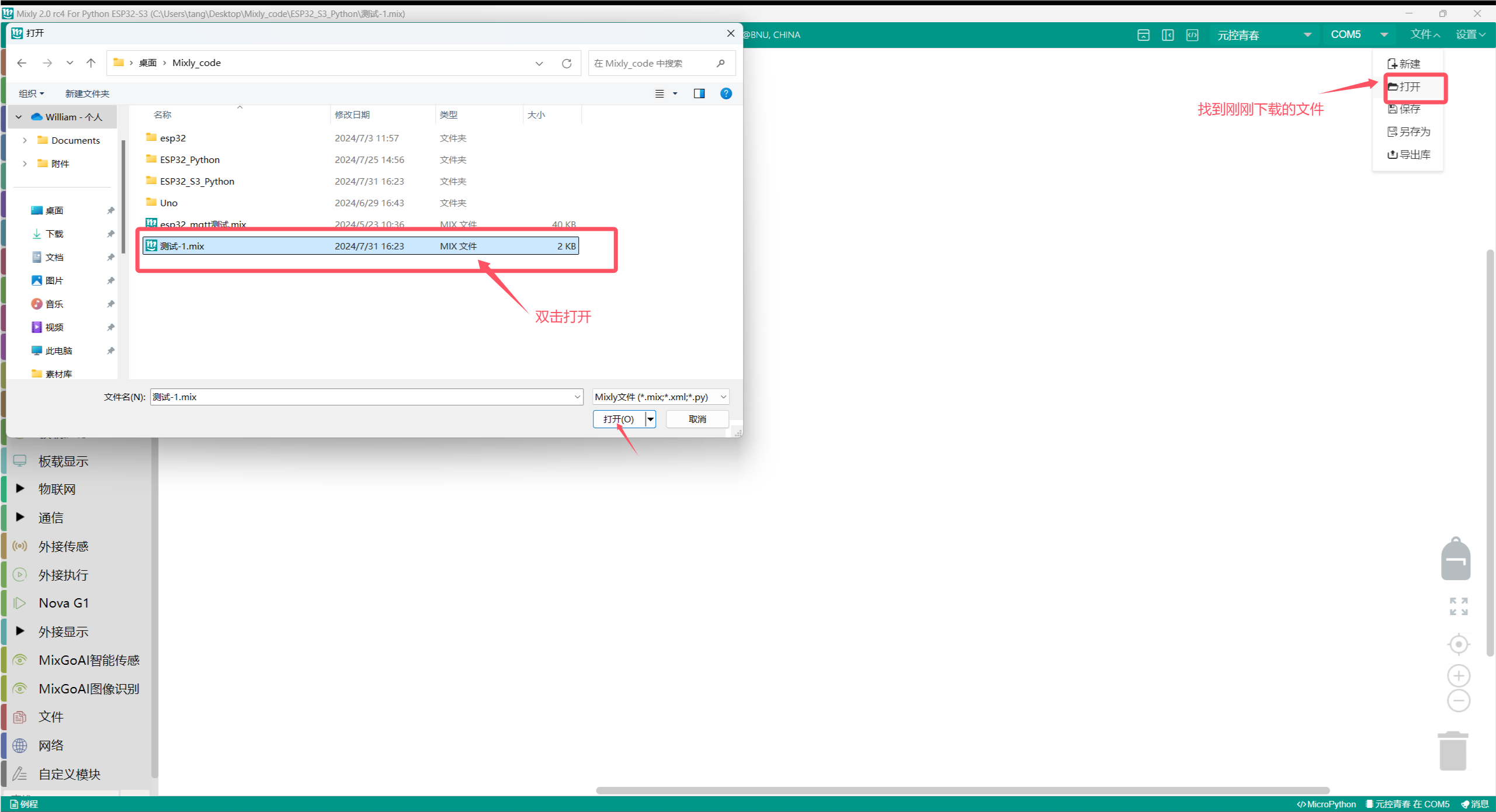
Upload programClick to download the example program
This is an example program that displays Hello STEM!
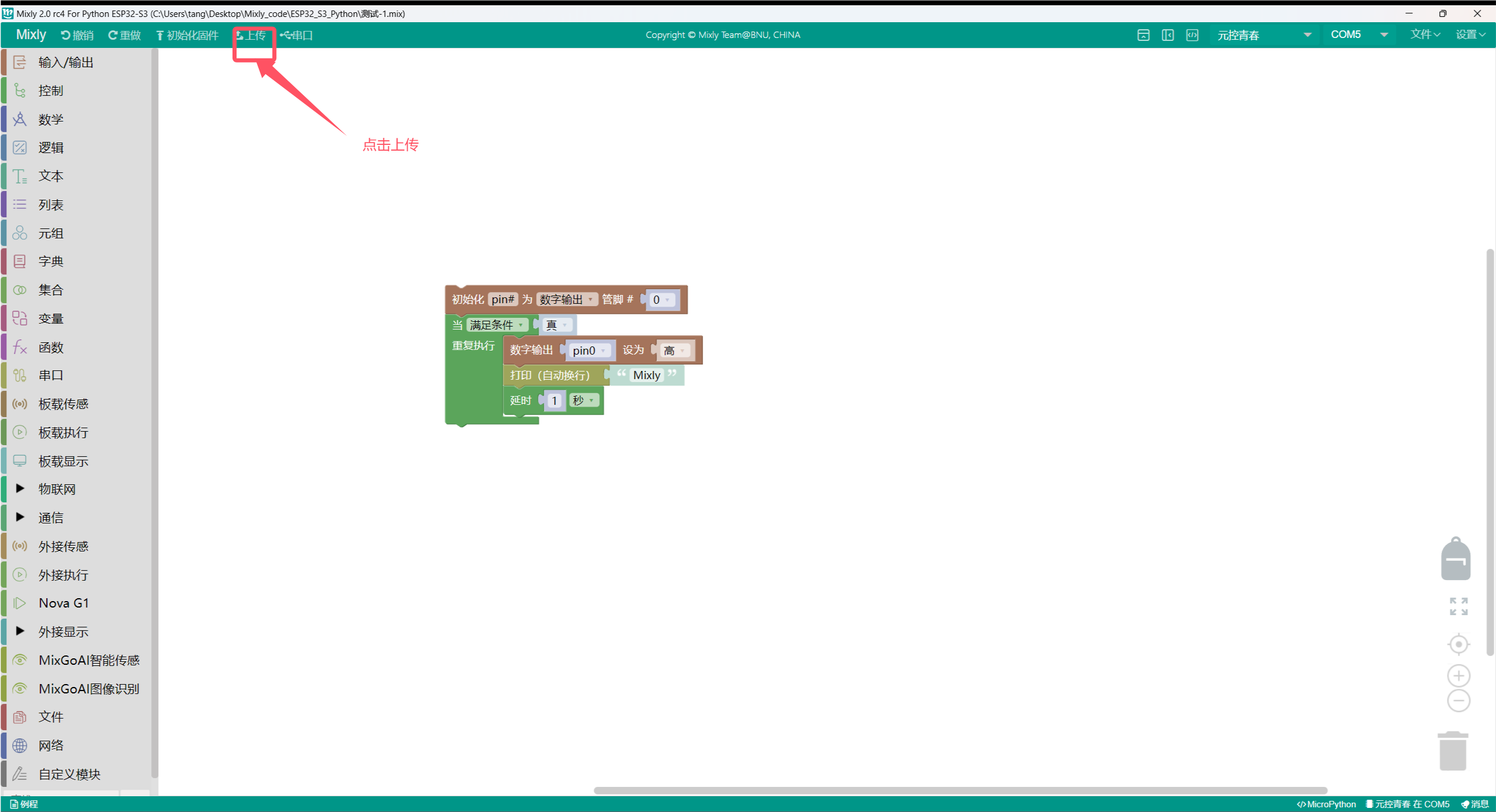
Click to upload the program.
Open the serial monitor.
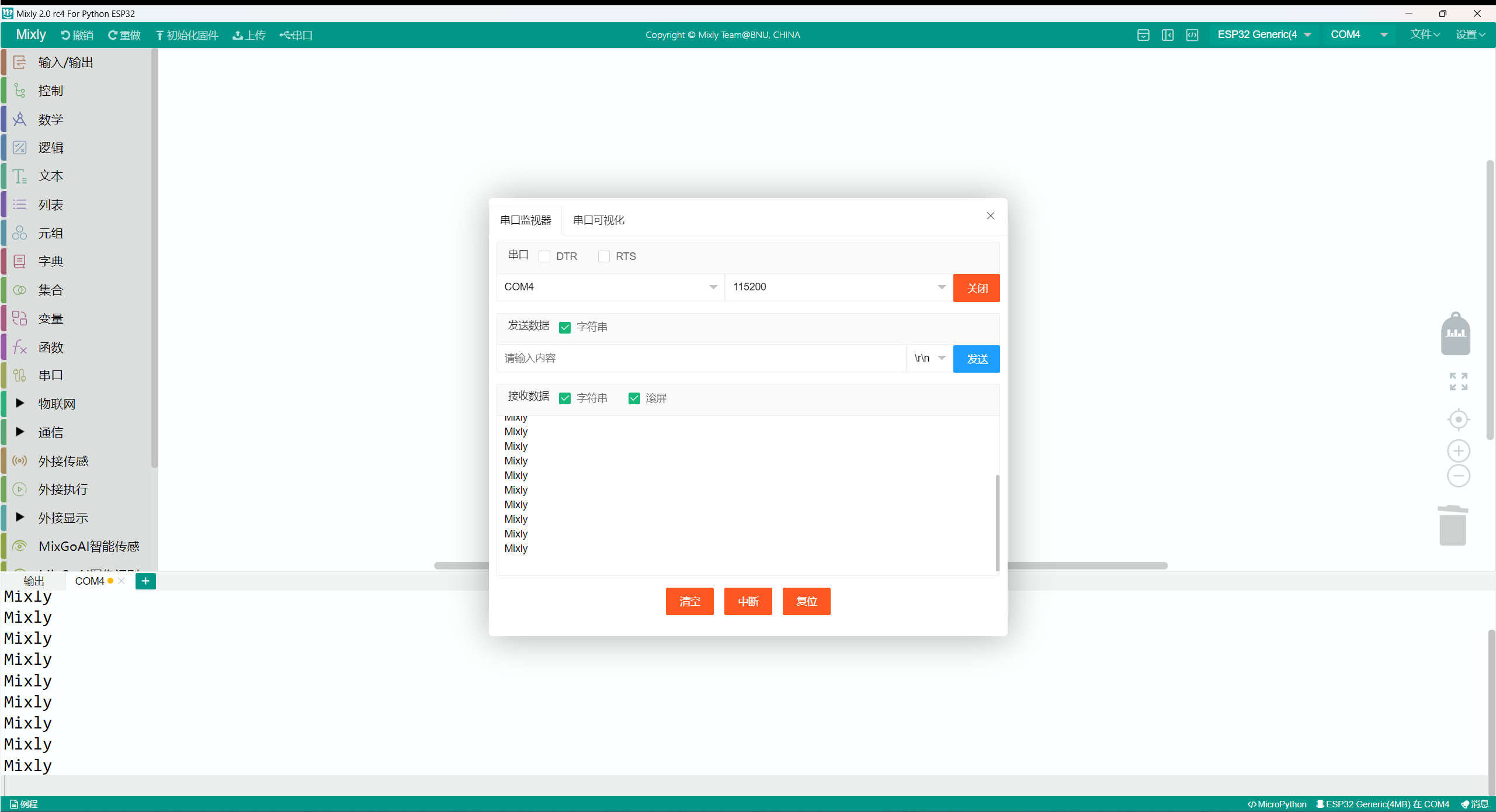
You can see that Mixly keeps printing.
Mac system Mixly installation package:https://mp.weixin.qq.com/s/ntaD-eYdjlEXlMMaHOtBAQ
Download code via USB
Currently, there are two ways to download and debug ESP32-S3, one is through serial port (UART), and the other is through USB.If using a serial port, an additional serial port chip - CP2102 is required.Connect and download directly using USB.
There are 2 methods to enter download mode:
1, In the case of power on, hold down the BOOT button without releasing it, then press the reset button, and then release the BOOT to enter download mode, and then click the programming software to start uploading code.
2,Power on while holding the BOOT button and then click the programming software to start uploading code.