1. Introduction
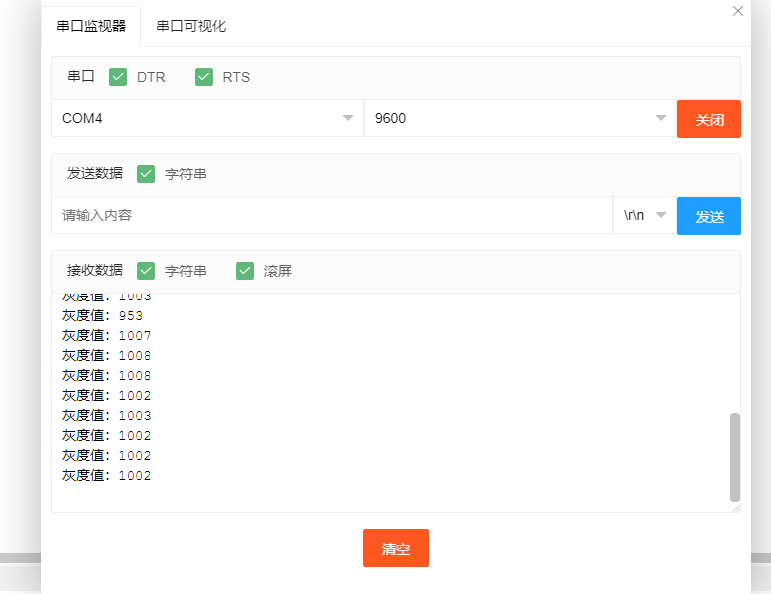
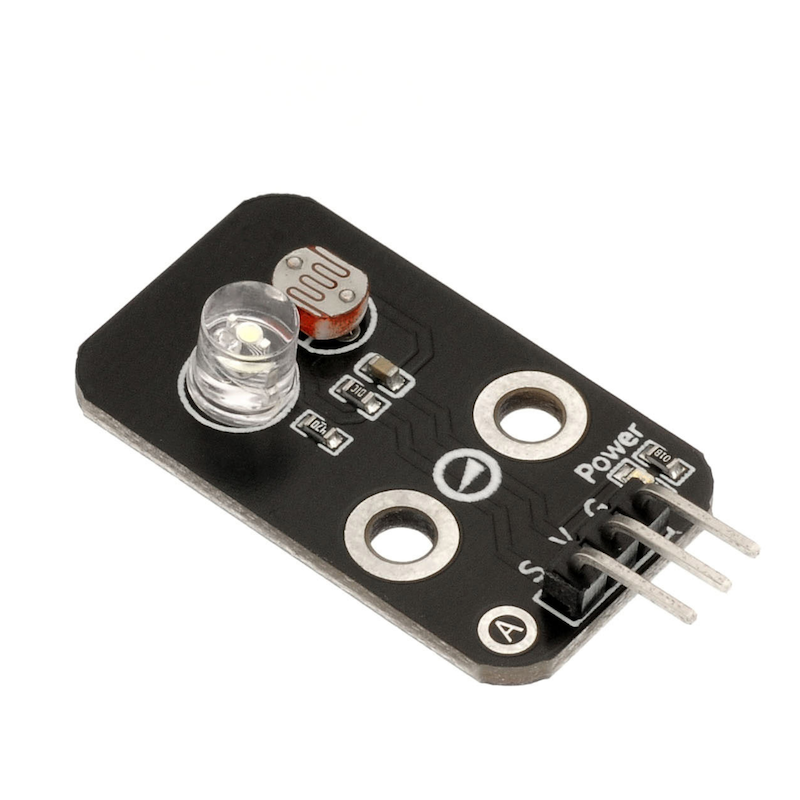
The grayscale sensor is an analog sensor that can be used with Arduino to perceive different colors on the ground or desktop and produce corresponding signals. It can realize interactive works related to colors, and can also be used as a tracking car sensor or a football robot's field grayscale recognition sensor.The grayscale sensor includes a white high-brightness LED and a photosensitive resistor. Due to the different light returned by the LED when照射 to paper with different grayscale, the photosensitive resistor receives the returned light, and the resistance value of the photosensitive resistor is also different according to the intensity of the light, thereby realizing the grayscale value test.
2. Schematic
Gray sensor-HS-S22P schematicClick to view
Module Parameters
Pin Name | description |
|---|---|
G | GND (Negative Power Input) |
V | VCC (Positive Power Input) |
S | Analog Signal Pin |
Power Supply Voltage: 3.3V / 5V
Connection Type: 2.54mm Header
Installation Method: Double Screw Fixed
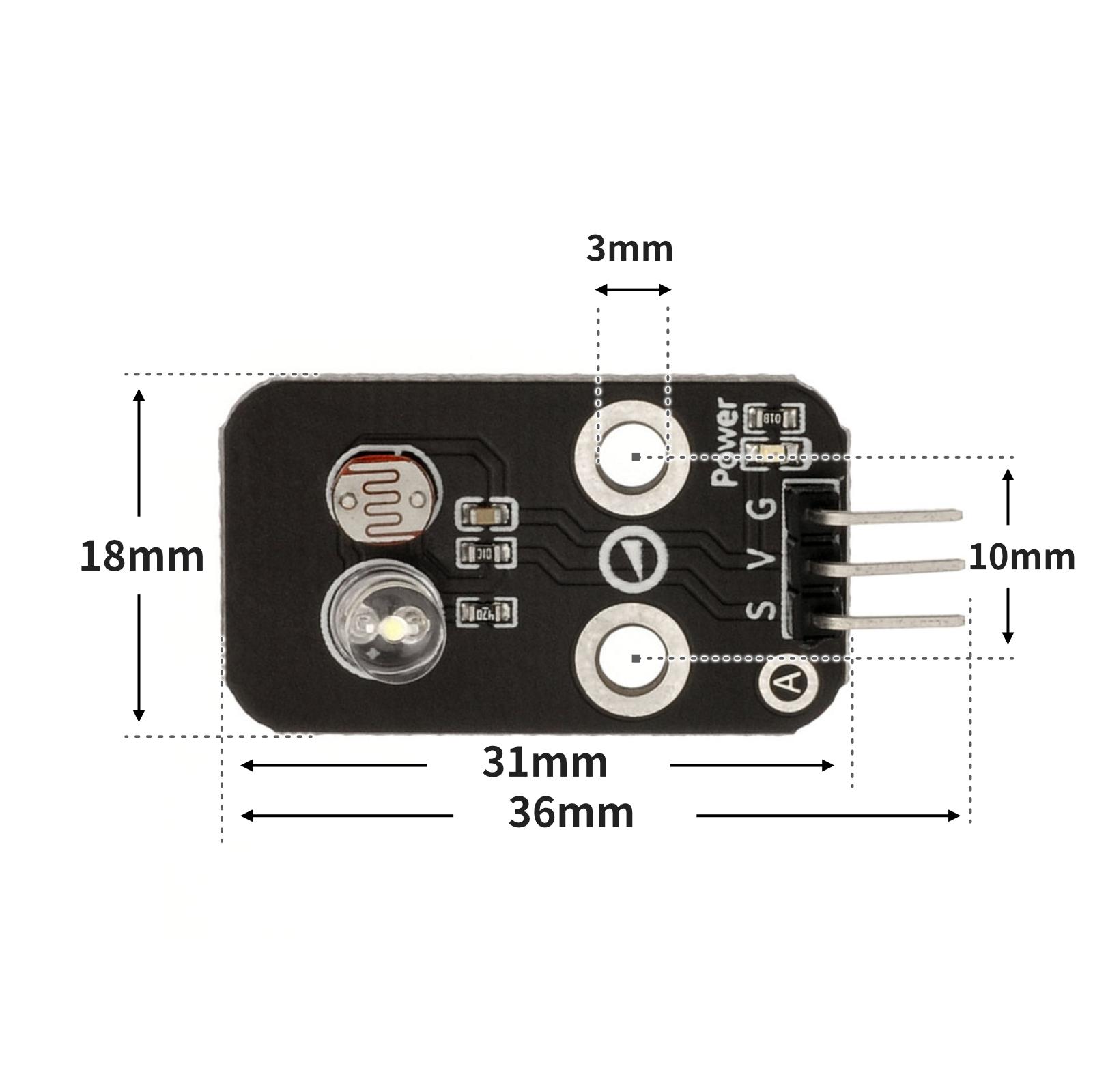
4, Circuit Board Size
5 of Arduino IDE example program
Attention: If prompted with an error message about the library file during program upload, please import the library file first!
Arduino IDE Library Download and Import Tutorial:Click to view
Example program (UNO development board):
 int value = 0;

void setup(){
  Serial.begin(9600);

  pinMode(A0, INPUT);
}

void loop(){
  value = analogRead(A0);
  Serial.print("灰度值:");
  Serial.println(value);
  delay(500);

}
6, ESP32 Python Example (for Mixly IDE/Misashi)
Choose the development board Python ESP32 [ESP32 Generic(4MB)] and upload in code mode
Attention: If prompted with an error message about the library file during program upload, please import the library file first!
Download and import tutorial for Mixly IDE ESP32 library:Click to view
Example program (ESP32-Python):
import machine
import time


adc32 = machine.ADC(machine.Pin(32))
while True:
    print('灰度值:',end ="")
    print(adc32.read_u16())
    time.sleep_ms(100)
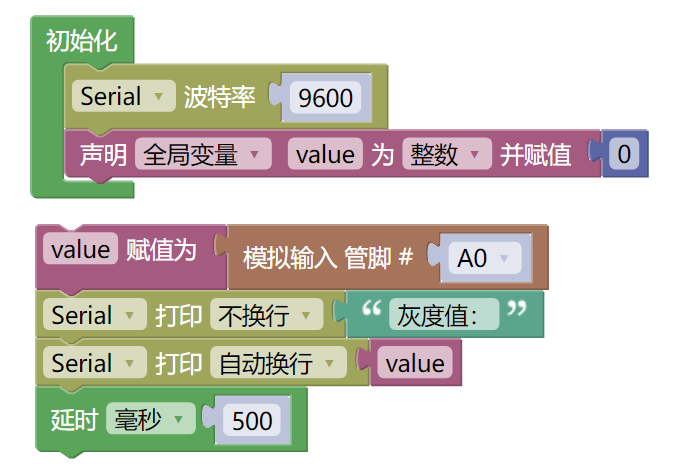
7, Mixly example program (graphical language)
Example program (UNO development board):Click to download
Attention: If prompted with an error message about the library file during program upload, please import the library file first!
Download and import tutorial of Mixly IDE Arduino library:Click to view
Example Program (ESP32 Development Board):Click to download
Attention: If prompted with an error message about the library file during program upload, please import the library file first!
Download and import tutorial for Mixly IDE ESP32 library:Click to view
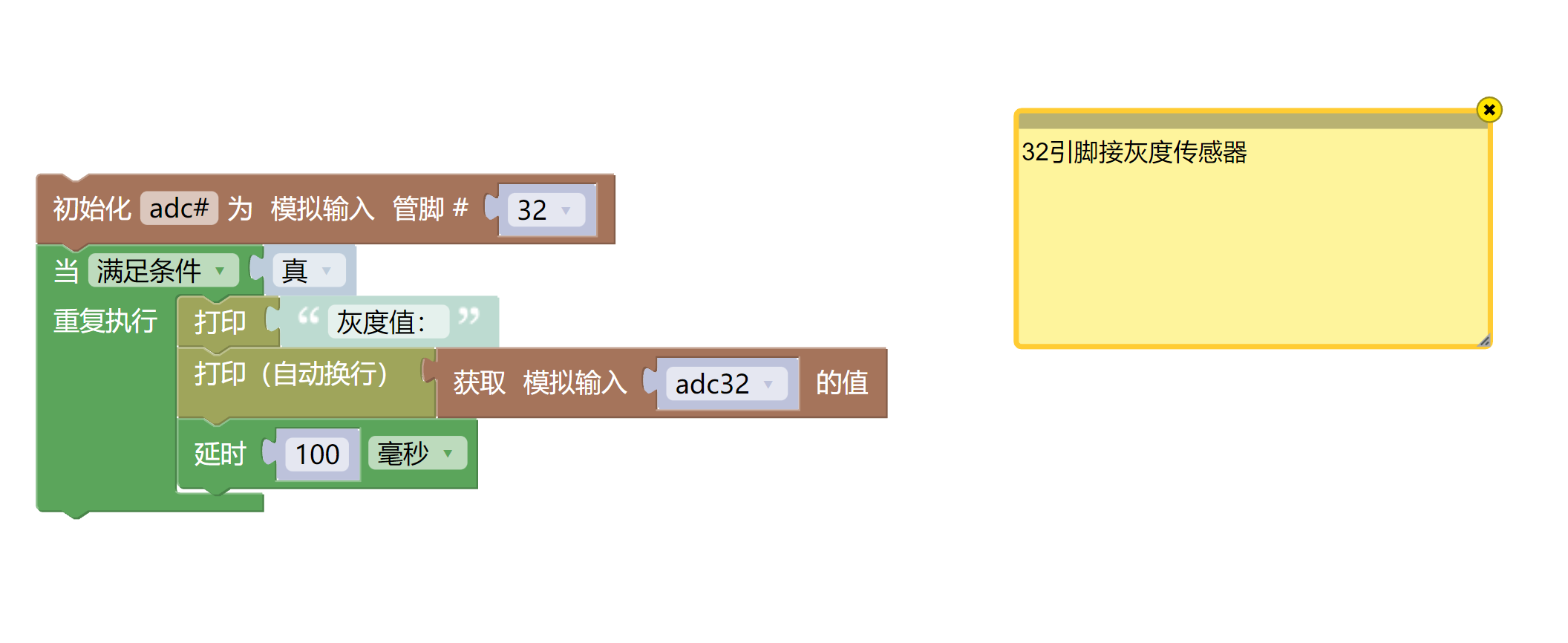
8. Setting up the Test Environment
Arduino UNO Test Environment Setup
Prepare Components:
HELLO STEM UNO R3 PRO DEVELOPMENT BOARD *1
USB TYPE-C DATA CABLE *1
Gray Sensor (HS-S22A) *1
1P female to female DuPont wire *3 pieces or 3P female to female DuPont wire *1 piece
Circuit wiring diagram:
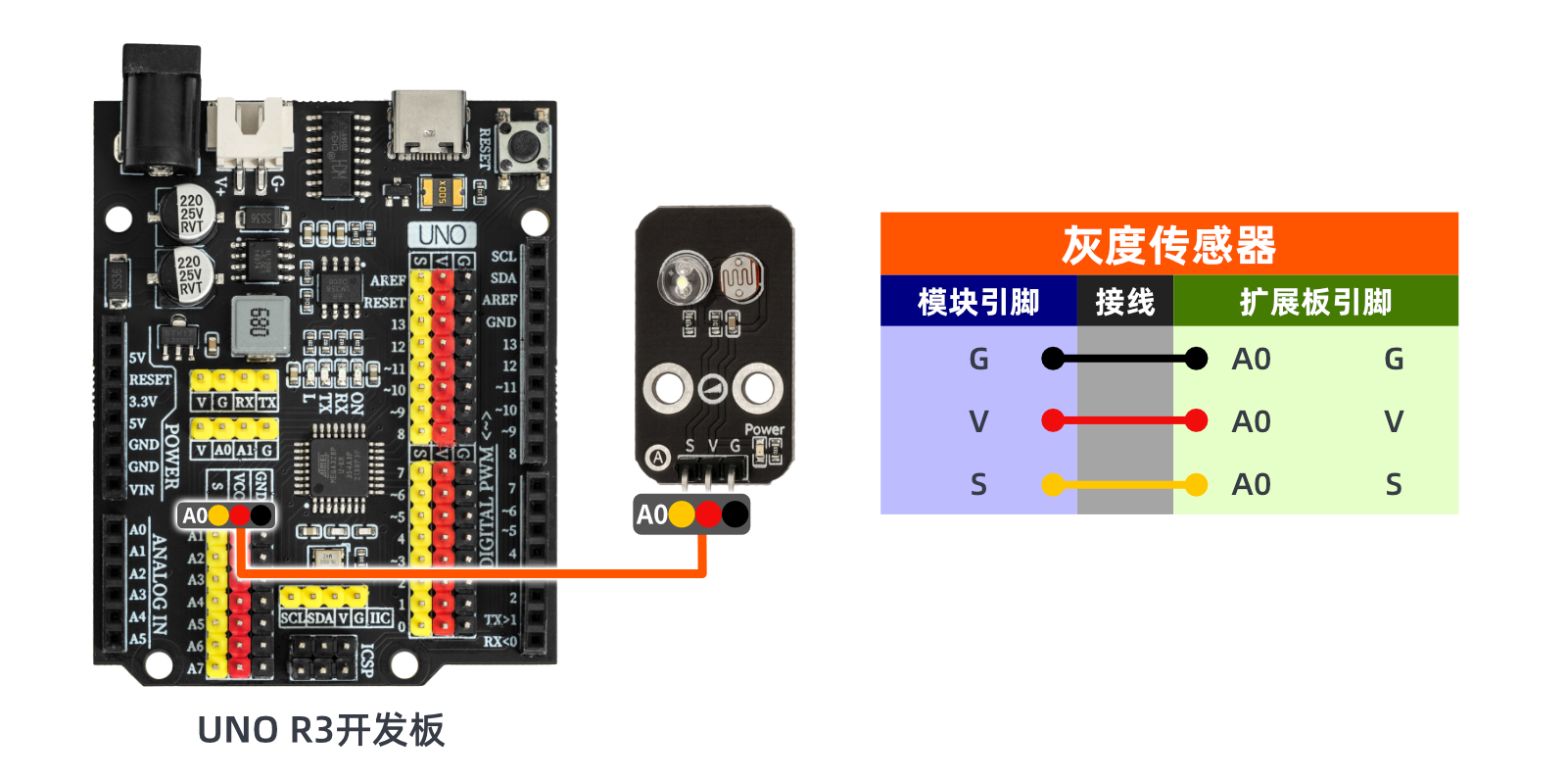
ESP32 Test Environment Setup
Prepare Components:Pending update...
Circuit wiring diagram:Pending update...
9, Video tutorial
Video tutorial:Click to view
10, Test results
Arduino UNO test results:
After connecting the device lines, upload the above program to the Arduino UNO development board, open the Mxily serial port monitor, place the sensor on paper with different gray levels, and we observe that the serial port prints out different measured analog value numbers.