
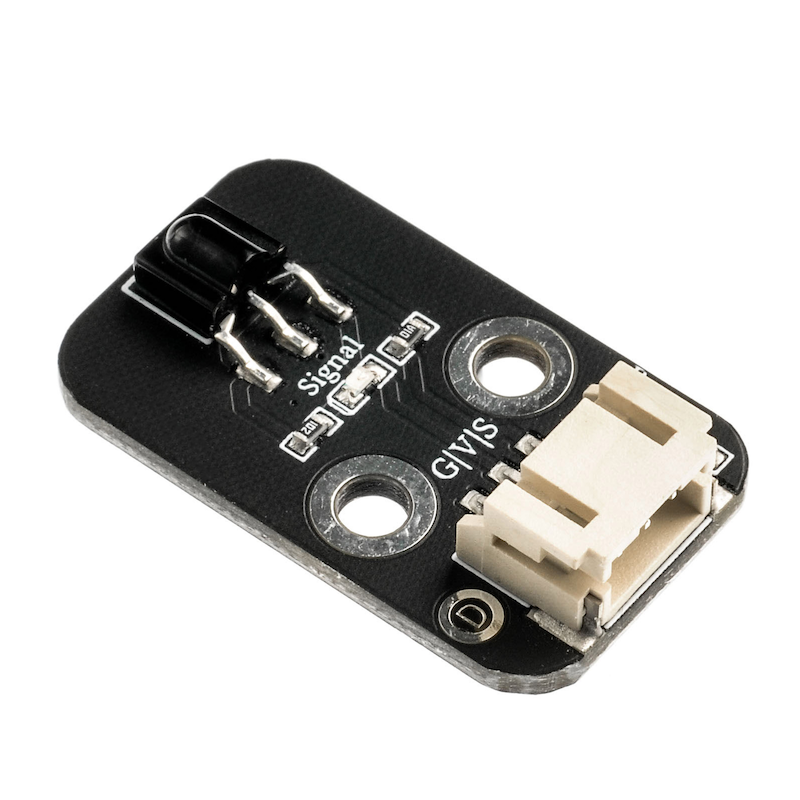
1. Introduction
2. Schematic
38K infrared decoding receiver - HS-S23P schematicClick to view
Module Parameters
Pin Name | description |
|---|---|
G | GND (Negative Power Input) |
V | VCC (Positive Power Input) |
S | Digital Signal Pin |
Power Supply Voltage: 3.3V / 5V
Connection method: PH2.0 socket
Installation method: Screw fixed
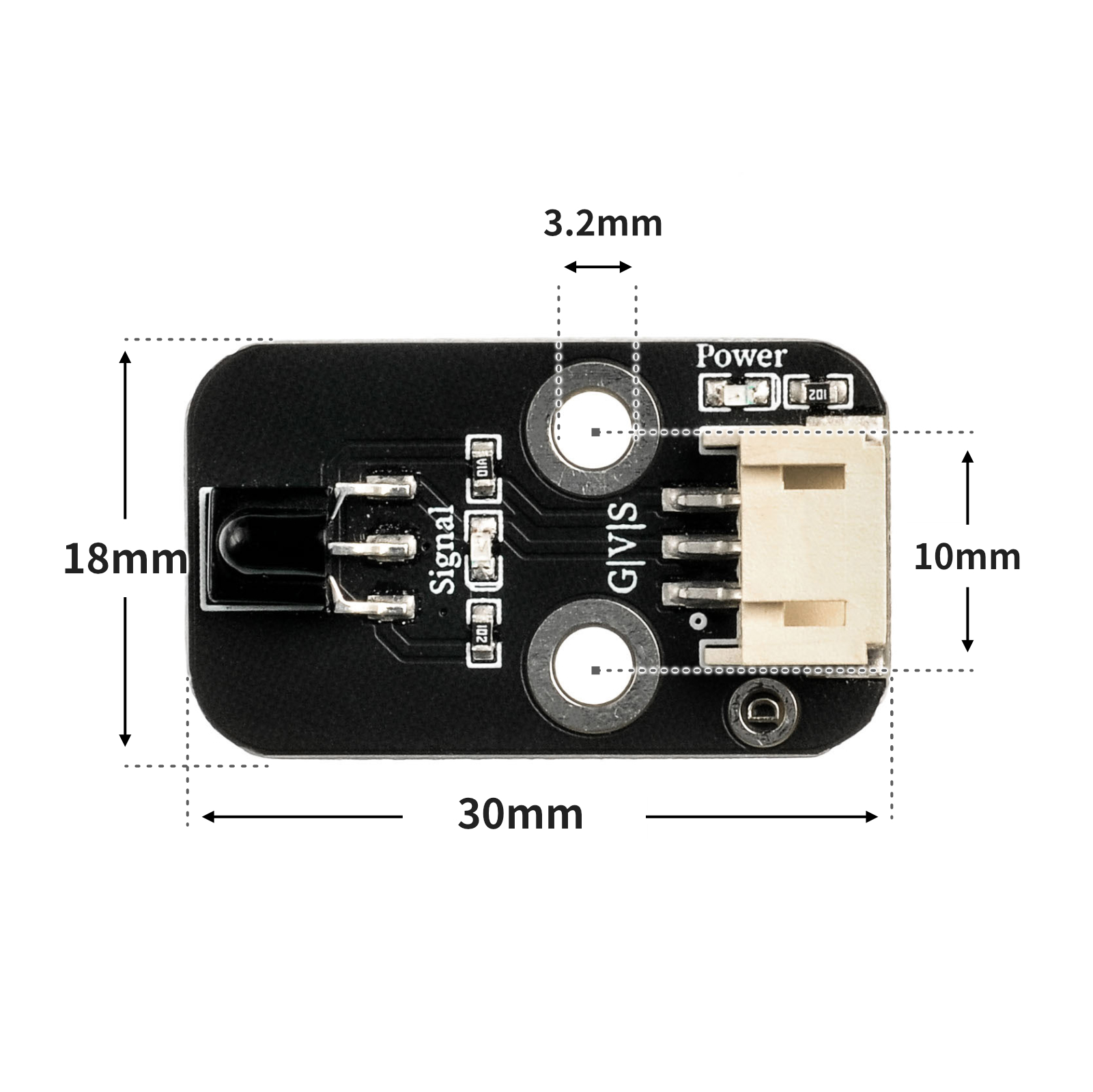
4, Circuit Board Size
5 of Arduino IDE example program
Attention: If prompted with an error message about the library file during program upload, please import the library file first!
Arduino IDE Library Download and Import Tutorial:Click to view
Example program (UNO development board):
/***********************************************************
  文件名:17_IRremote.ino
  描述:红外遥控灯。
  作者:陈志强
  日期:2022.11.3
***********************************************************/
#include <IRremote.h>

volatile int red;
volatile int yellow;
volatile int green;
const String IR_PROTOCOL_TYPE[] = {
  "UNKNOWN",
  "PULSE_DISTANCE",
  "PULSE_WIDTH",
  "DENON",
  "DISH",
  "JVC",
  "LG",
  "LG2",
  "NEC",
  "PANASONIC",
  "KASEIKYO",
  "KASEIKYO_JVC",
  "KASEIKYO_DENON",
  "KASEIKYO_SHARP",
  "KASEIKYO_MITSUBISHI",
  "RC5",
  "RC6",
  "SAMSUNG",
  "SHARP",
  "SONY",
  "ONKYO",
  "APPLE",
  "BOSEWAVE",
  "LEGO_PF",
  "MAGIQUEST",
  "WHYNTER"
};
IRrecv irrecv_4(4);

void setup(){
  red = 11;
  yellow = 10;
  green = 9;
  Serial.begin(9600);
  irrecv_4.enableIRIn();
}

void loop(){
  if (irrecv_4.decode()) {
    struct IRData *pIrData = &irrecv_4.decodedIRData;
    long ir_item = pIrData->decodedRawData;
    String irProtocol = IR_PROTOCOL_TYPE[pIrData->protocol];
    Serial.print("IR TYPE:" + irProtocol + "\tVALUE:");
    Serial.println(ir_item, HEX);
    irrecv_4.resume();
    Serial.println(ir_item,HEX);
    switch (ir_item) {
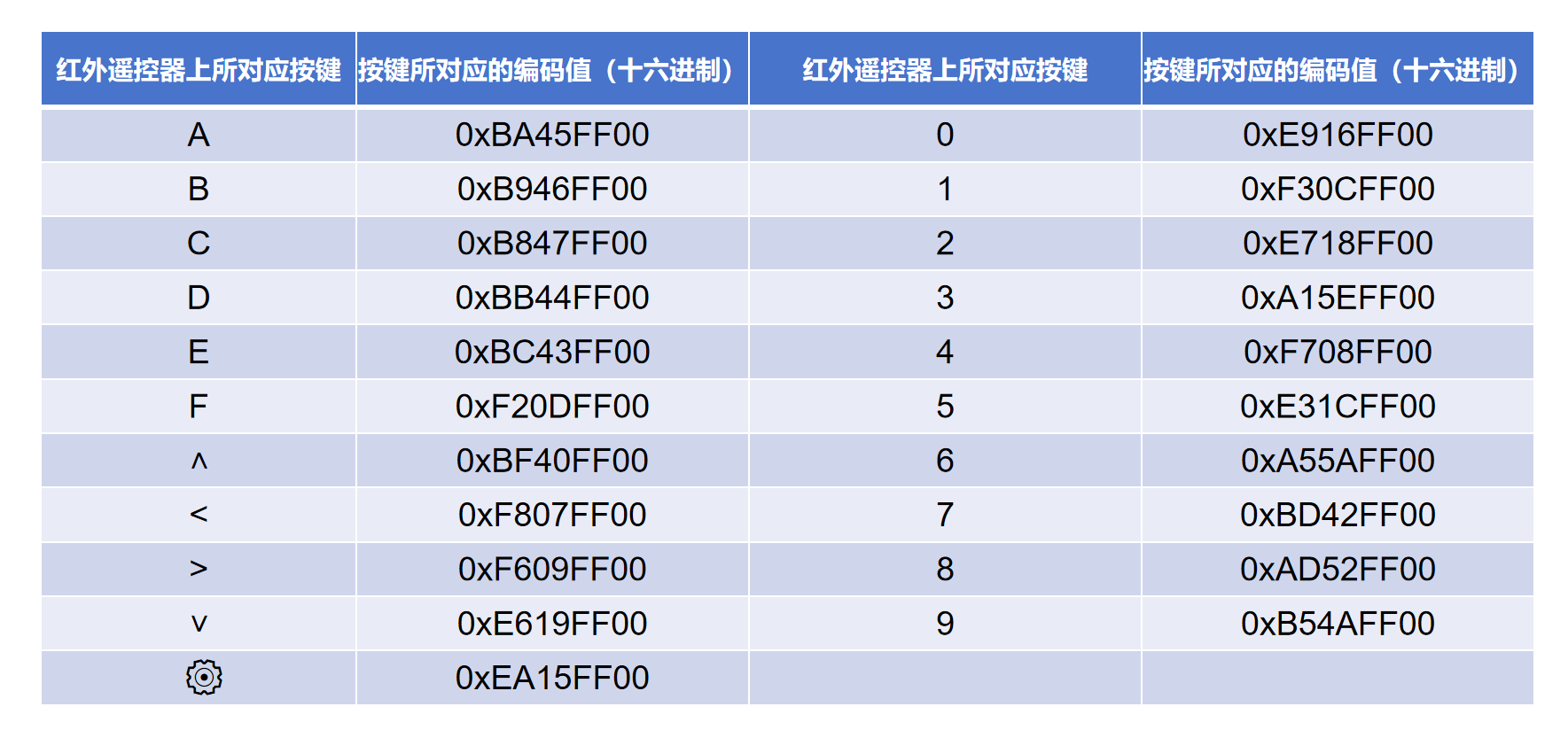
     case 0xF30CFF00:
      //按下遥控器“1”键编码值:F30CFF00。红灯亮。
      pinMode(red, OUTPUT);
      digitalWrite(red,HIGH);
      pinMode(yellow, OUTPUT);
      digitalWrite(yellow,LOW);
      pinMode(green, OUTPUT);
      digitalWrite(green,LOW);
      break;
     case 0xE718FF00:
      //按下遥控器“2”键编码值:E718FF00。黄灯亮。
      pinMode(yellow, OUTPUT);
      digitalWrite(yellow,HIGH);
      pinMode(red, OUTPUT);
      digitalWrite(red,LOW);
      pinMode(green, OUTPUT);
      digitalWrite(green,LOW);
      break;
     case 0xA15EFF00:
      //按下遥控器“3”键编码值:A15EFF00。绿灯亮。
      pinMode(green, OUTPUT);
      digitalWrite(green,HIGH);
      pinMode(red, OUTPUT);
      digitalWrite(red,LOW);
      pinMode(yellow, OUTPUT);
      digitalWrite(yellow,LOW);
      break;
     case 0xBA45FF00:
      //按下遥控器“A”键编码值:BA45FF00。所以灯熄灭。
      pinMode(red, OUTPUT);
      digitalWrite(red,LOW);
      pinMode(yellow, OUTPUT);
      digitalWrite(yellow,LOW);
      pinMode(green, OUTPUT);
      digitalWrite(green,LOW);
      break;
     default:
      break;
    }

  } else {

  }

}
6, ESP32 Python Example (for Mixly IDE/Misashi)
Choose the development board Python ESP32 [ESP32 Generic(4MB)] and upload in code mode
Attention: If prompted with an error message about the library file during program upload, please import the library file first!
Download and import tutorial for Mixly IDE ESP32 library:Click to view
Example program (ESP32-Python):
待更新...7, Mixly example program (graphical language)
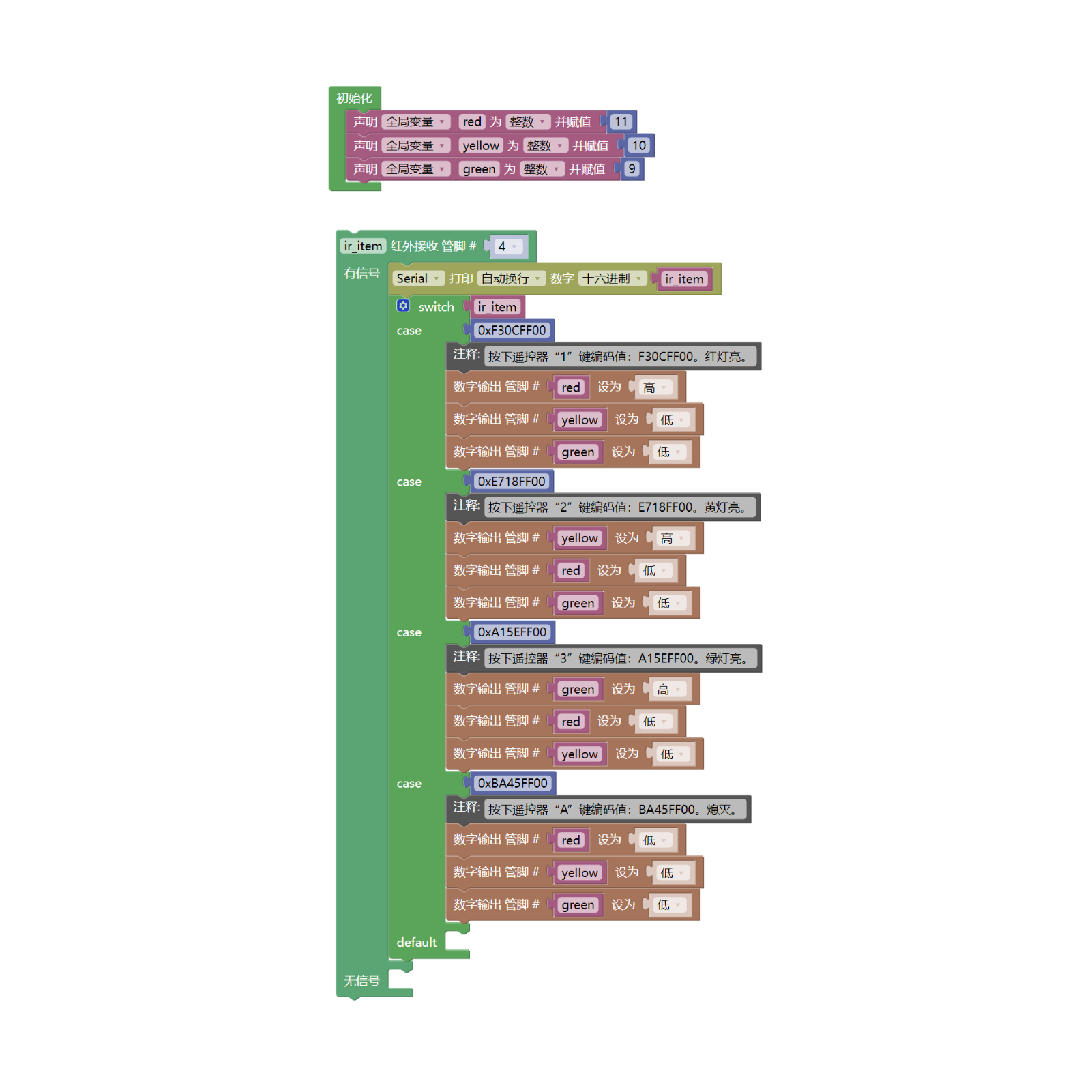
Example program (UNO development board):Click to download
Attention: If prompted with an error message about the library file during program upload, please import the library file first!
Download and import tutorial of Mixly IDE Arduino library:Click to view
Example Program (ESP32 Development Board):Click to download
Attention: If prompted with an error message about the library file during program upload, please import the library file first!
Download and import tutorial for Mixly IDE ESP32 library:Click to view
Image pending update...
8. Setting up the Test Environment
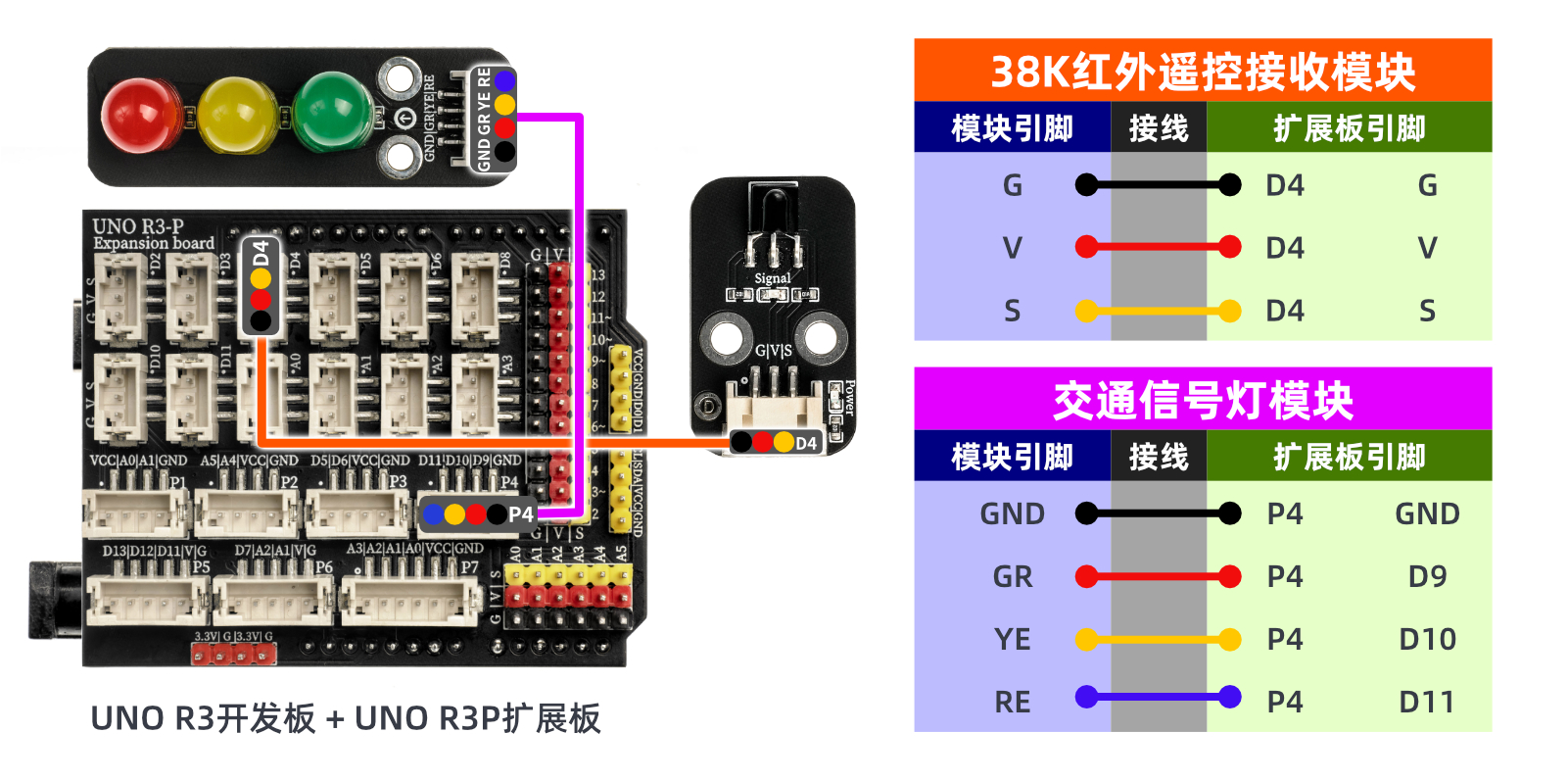
Arduino UNO Test Environment Setup
Prepare Components:
HELLO STEM UNO R3 DEVELOPMENT BOARD *1
HELLO STEM UNO R3 P EXPANSION BOARD *1
Traffic Signal Module (HS-F05P) *1
38K Infrared Receiver Module (HS-S23P) *1
PH2.0 4P Double Head Terminal Line *1
PH2.0 3P dual headed terminal line *1
Infrared remote control*1
Circuit wiring diagram:
ESP32 environment setup
Prepare Components:Pending update...
Circuit wiring diagram:Pending update...
9, Video tutorial
Video tutorial:Click to view
10, Test results
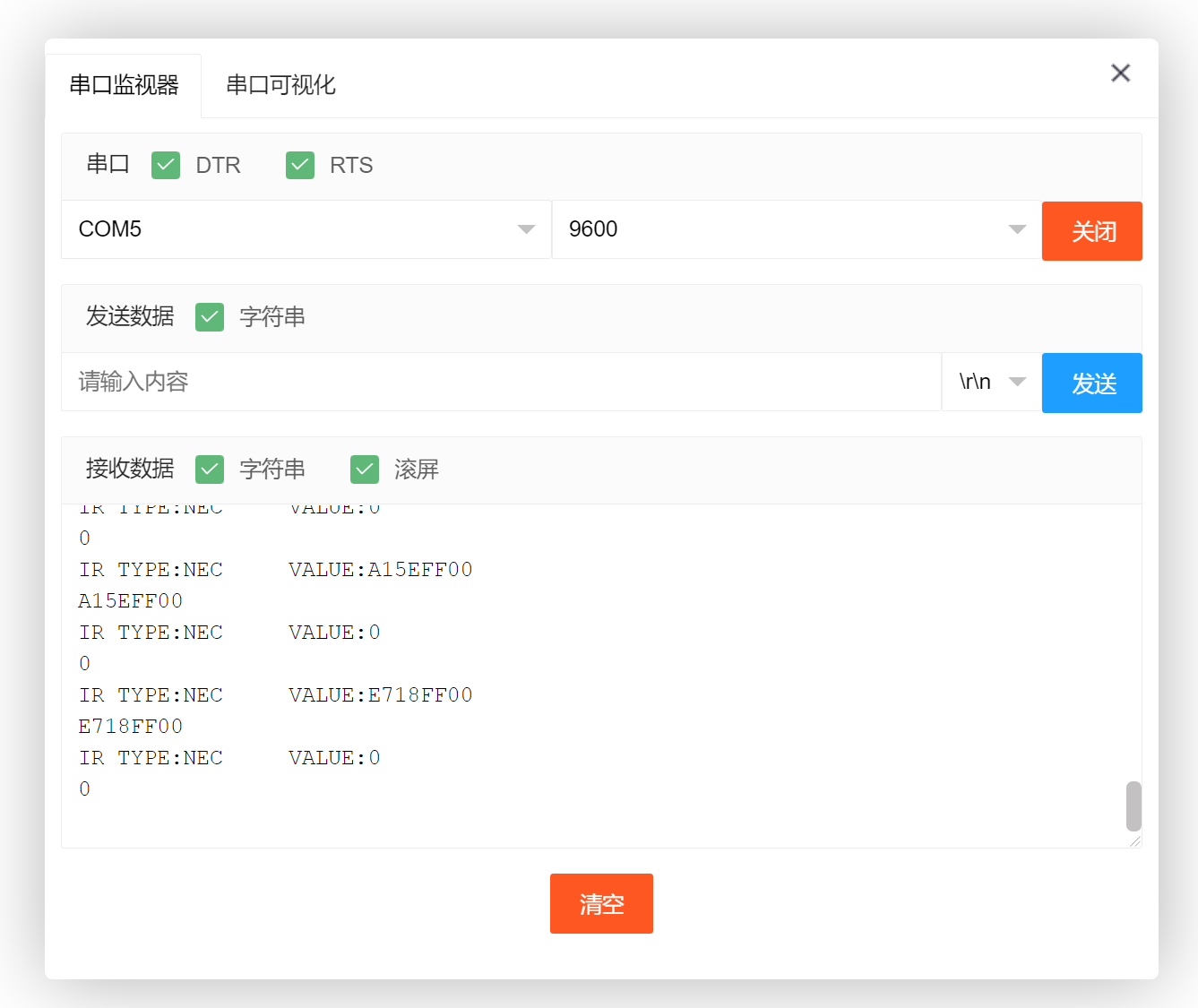
Arduino UNO test results:
ESP32 Test Results:
Pending update...