1. Introduction
2. Schematic
Environmental brightness sensor-HS-S20B schematicClick to view
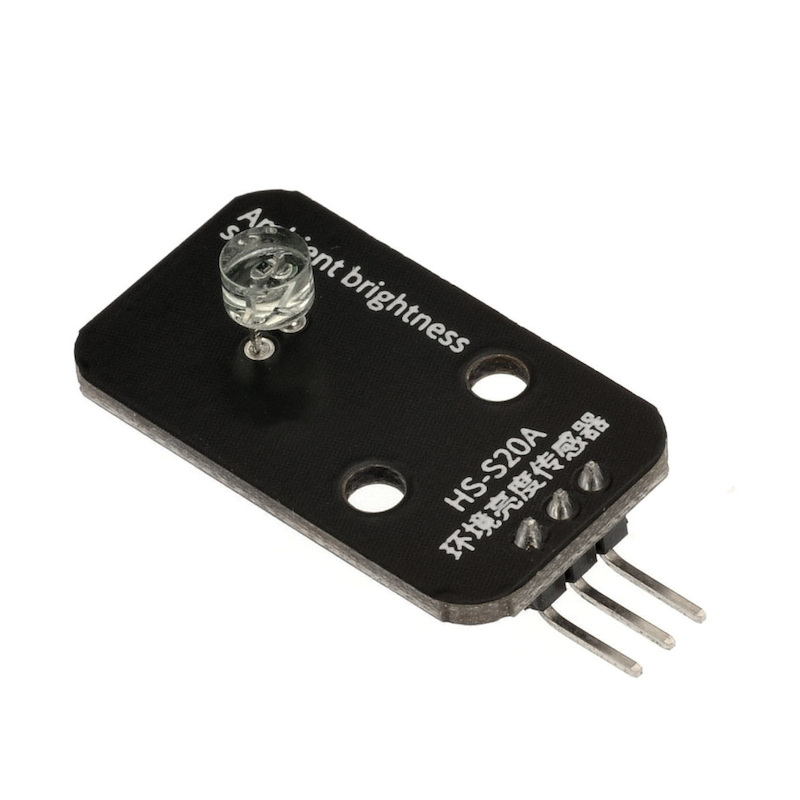
Module Parameters
Pin Name | description |
|---|---|
G | GND (Negative Power Input) |
V | VCC (Positive Power Input) |
S | Analog Signal Pin |
Power Supply Voltage: 3.3V / 5V
Connection Type: 2.54mm Header
Installation Method: Double Screw Fixed
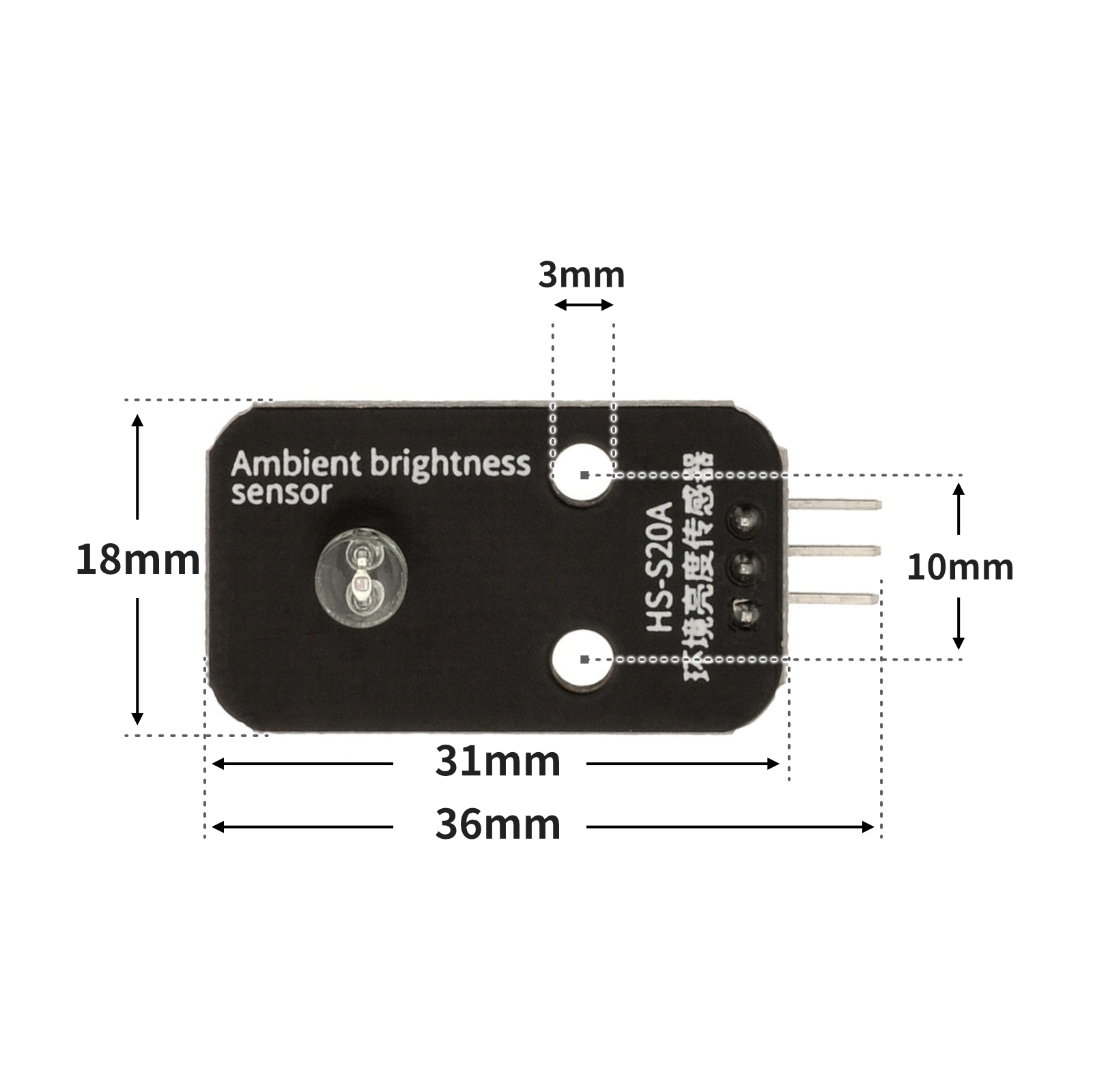
4, Circuit Board Size
5 of Arduino IDE example program
Attention: If prompted with an error message about the library file during program upload, please import the library file first!
Arduino IDE Library Download and Import Tutorial:Click to view
Example program (UNO development board):
volatile int sensorValue;
volatile int light;

void setup(){
  sensorValue = 0;
  light = 0;
  Serial.begin(9600);
  pinMode(A0, INPUT);
  pinMode(9, OUTPUT);
}

void loop(){
  //环境亮度传感器接A0;led灯模块接D9;
  //当手遮住光敏传感器时,显示数值将变小,led灯变亮;当光线变强时,显示数值将变大,led灯变暗;

  sensorValue = analogRead(A0);
  light = (map(sensorValue, 40, 890, 255, 0));
  Serial.print("  A0=");
  Serial.print(sensorValue);
  Serial.print("  light=");
  Serial.println(light);
  delay(5);
  analogWrite(9, light);

}
6, ESP32 Python Example (for Mixly IDE/Misashi)
Choose the development board Python ESP32 [ESP32 Generic(4MB)] and upload in code mode
Attention: If prompted with an error message about the library file during program upload, please import the library file first!
Download and import tutorial for Mixly IDE ESP32 library:Click to view
Example program (ESP32-Python):
import machine
from mixpy import math_map


value = 0
light = 0
adc32 = machine.ADC(machine.Pin(32))
pwm2 = machine.PWM(machine.Pin(2))
while True:
    value = adc32.read_u16()
    light = (math_map(value, 0, 65535, 65535, 0))
    pwm2.duty_u16(int(light))
7, Mixly example program (graphical language)
Example program (UNO development board):Click to download
Attention: If prompted with an error message about the library file during program upload, please import the library file first!
Download and import tutorial of Mixly IDE Arduino library:Click to view
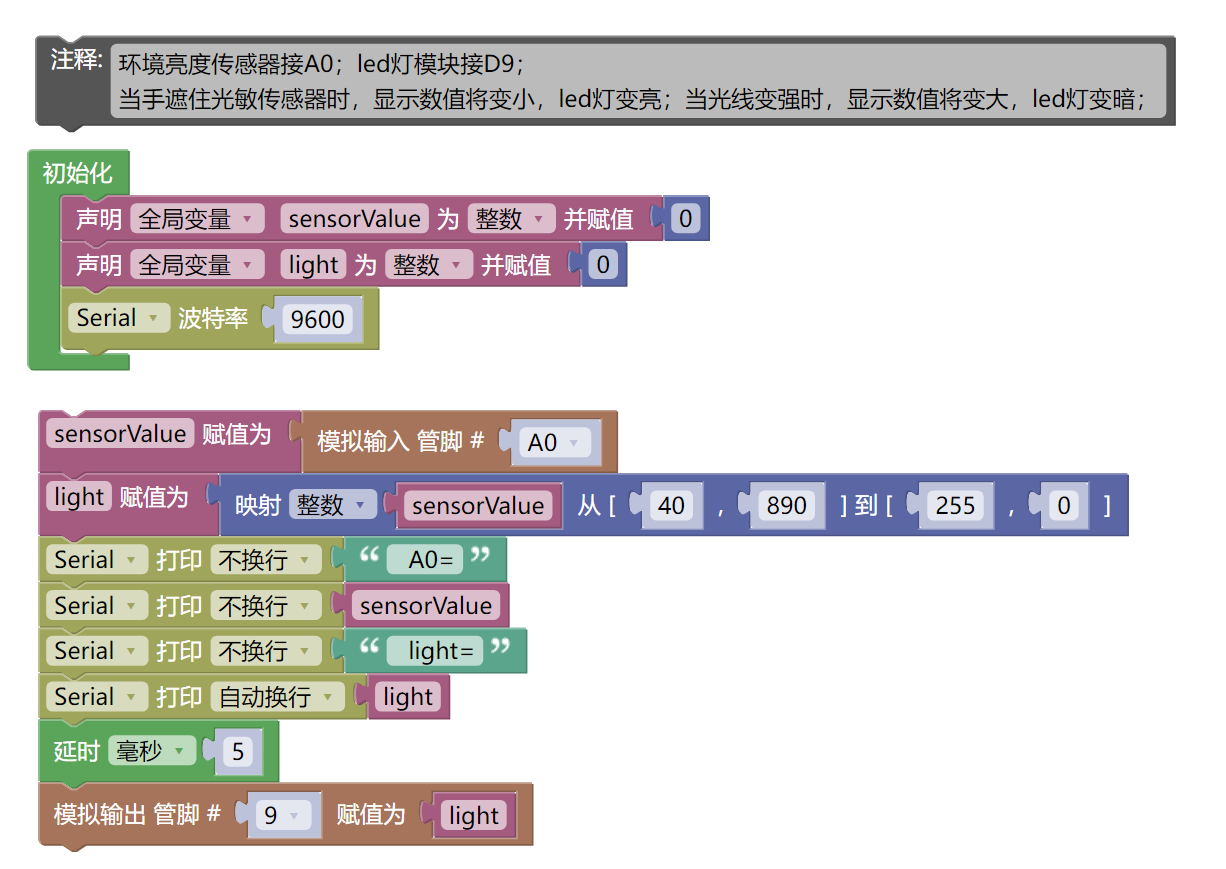
Example Program (ESP32 Development Board):Click to download
Attention: If prompted with an error message about the library file during program upload, please import the library file first!
Download and import tutorial for Mixly IDE ESP32 library:Click to view
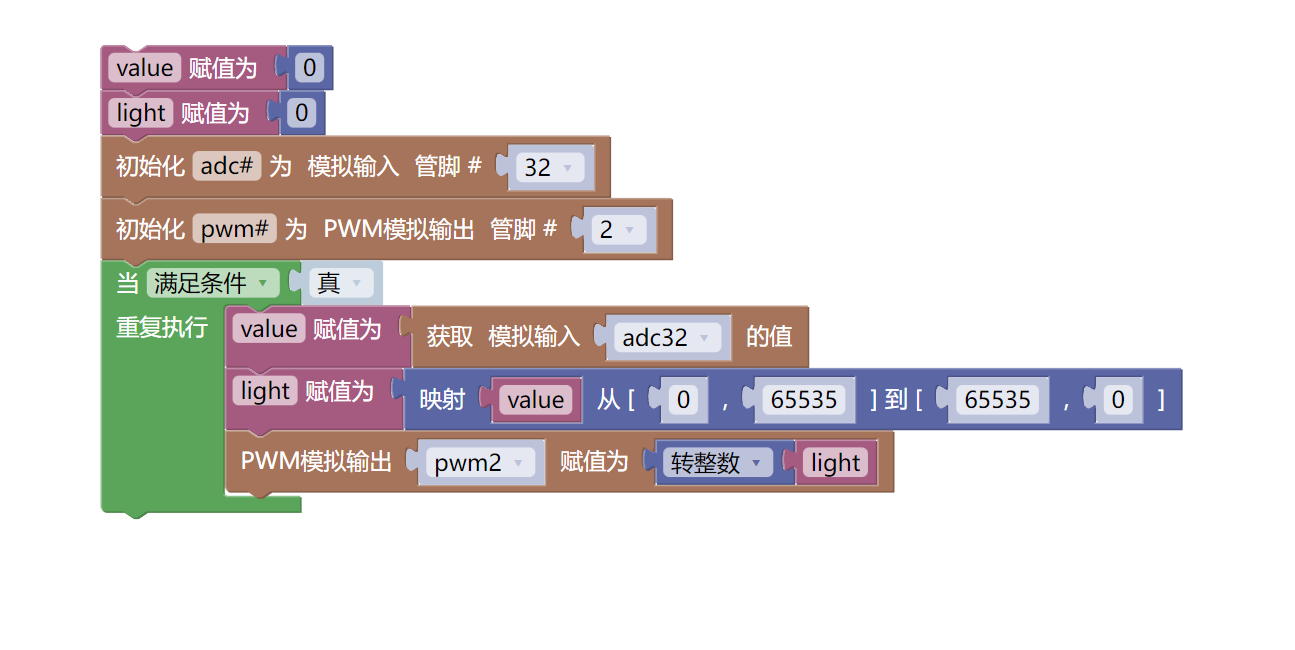
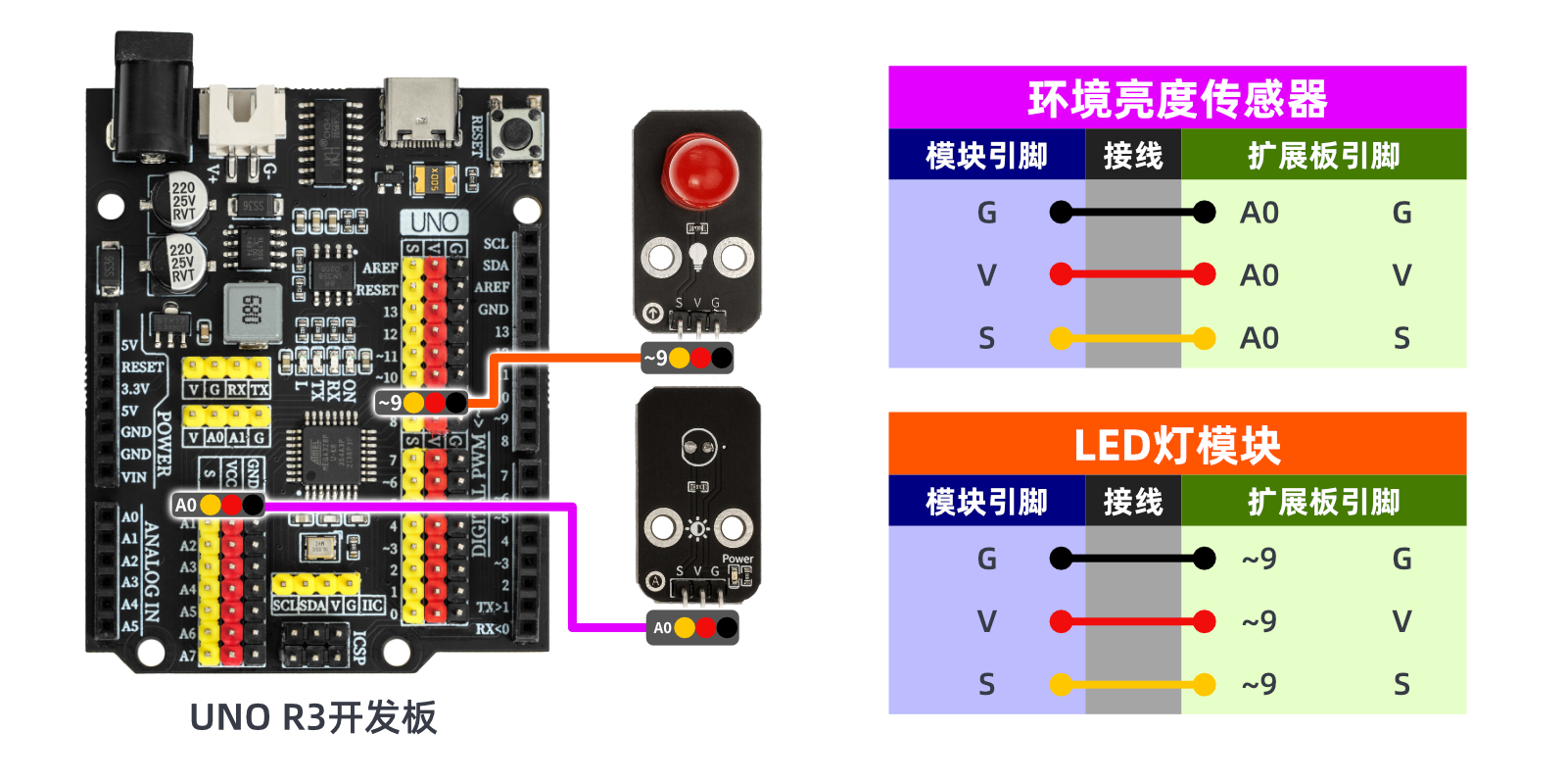
8. Setting up the Test Environment
Arduino UNO Test Environment Setup
Prepare Components:
HELLO STEM UNO R3 PRO DEVELOPMENT BOARD *1
USB TYPE-C DATA CABLE *1
LED light module (HS-F08A) *1
Environmental Brightness Sensor Module (HS-S20A) *1
1P female to female Dupont wire *6 pieces or 3P female to female Dupont wire *2 pieces
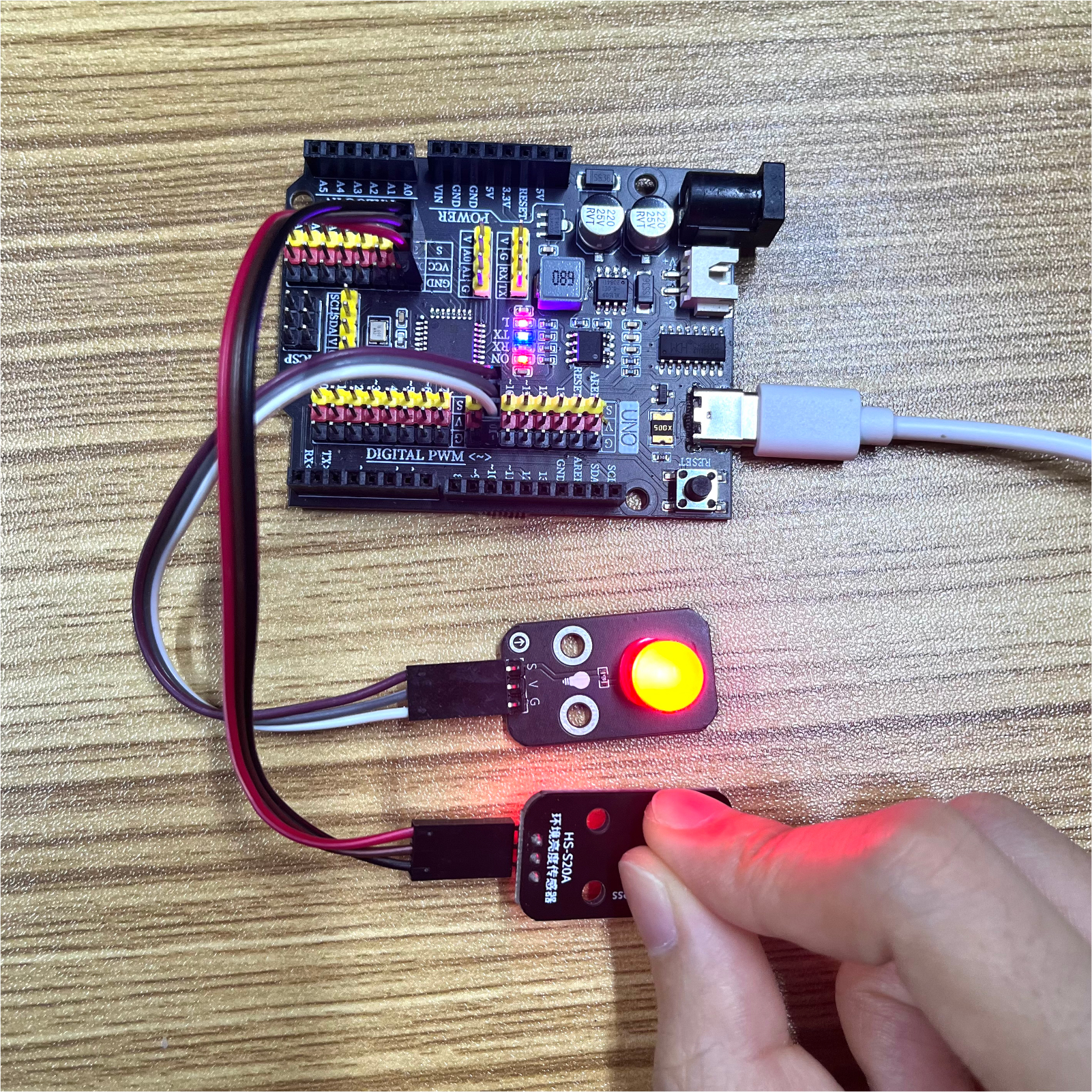
Circuit wiring diagram:
ESP32 Test Environment Setup
Prepare Components:Pending update...
Circuit wiring diagram:Pending update...
9, Video tutorial
Video tutorial:Click to view
10, Test results
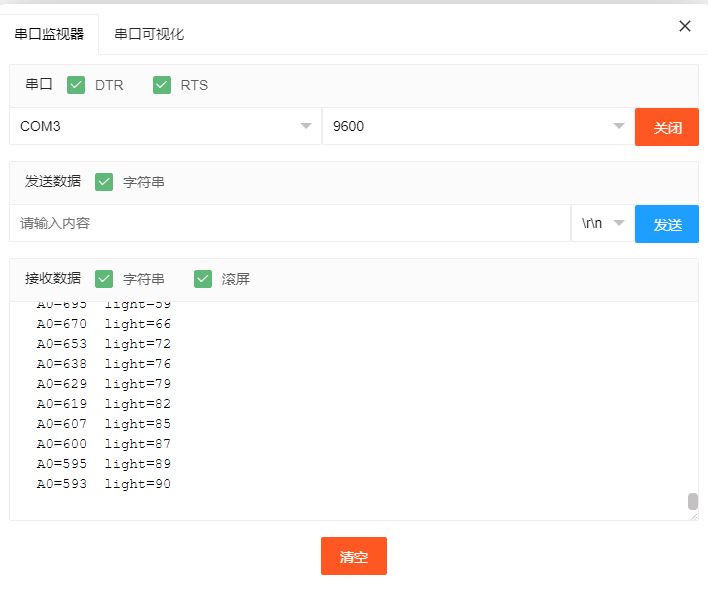
Arduino UNO test results: